This guide explains step by step how to authenticate guest network users through the SignLogger platform on WatchGuard Fireware Web UI. It follows the same logic as the SonicWall external captive portal document and covers syslog configuration, a dedicated guest VLAN/interface, external authentication via Hotspot, defining the RADIUS server and finally the firewall policies.
Step 1: Syslog Server (System > Logging)
- Go to System > Logging and open the Syslog Server tab.
- Tick Send log messages to these syslog servers.
- Click Add and enter your SignLogger server's IP (e.g.
10.100.100.253) and syslog port (default514). - Save.
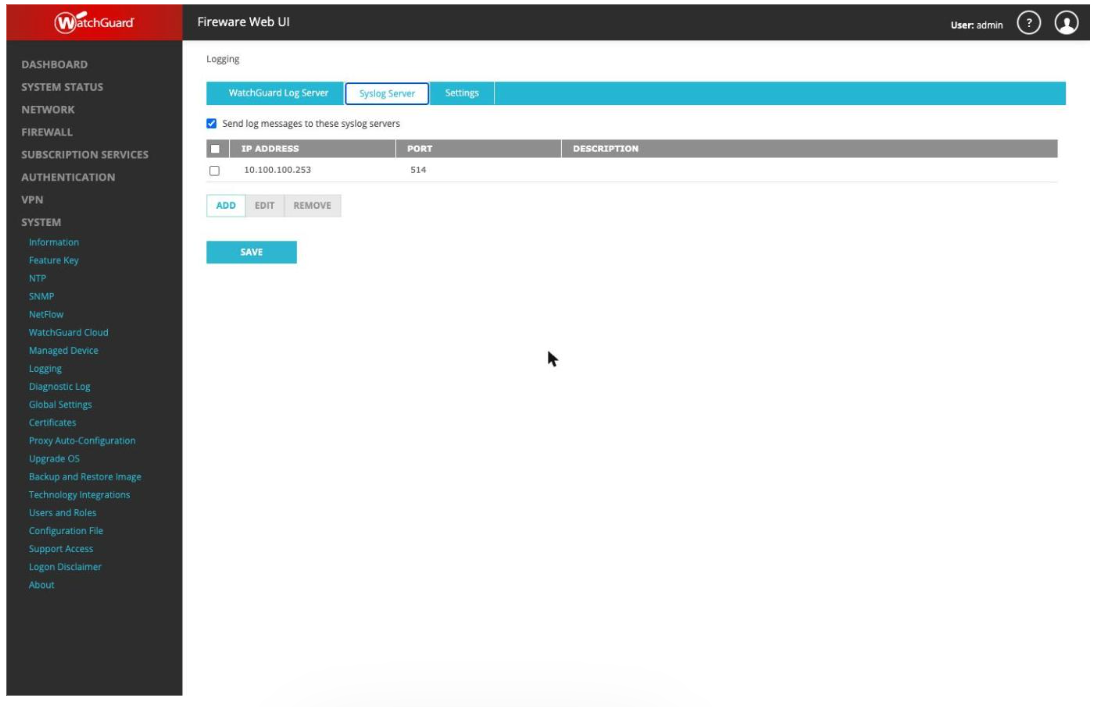
Screenshot 1: System > Logging > Syslog Server — SignLogger IP and port.
Step 2: Guest VLAN/Interface (Network > VLAN)
- Go to Network > VLAN and click Add.
- Enter a VLAN ID (e.g. 41) and a descriptive name such as
WG_Guest. - Set Zone to Trusted.
- Enter the guest IP block in IPv4 Address (e.g.
10.254.41.1/24). - Save.
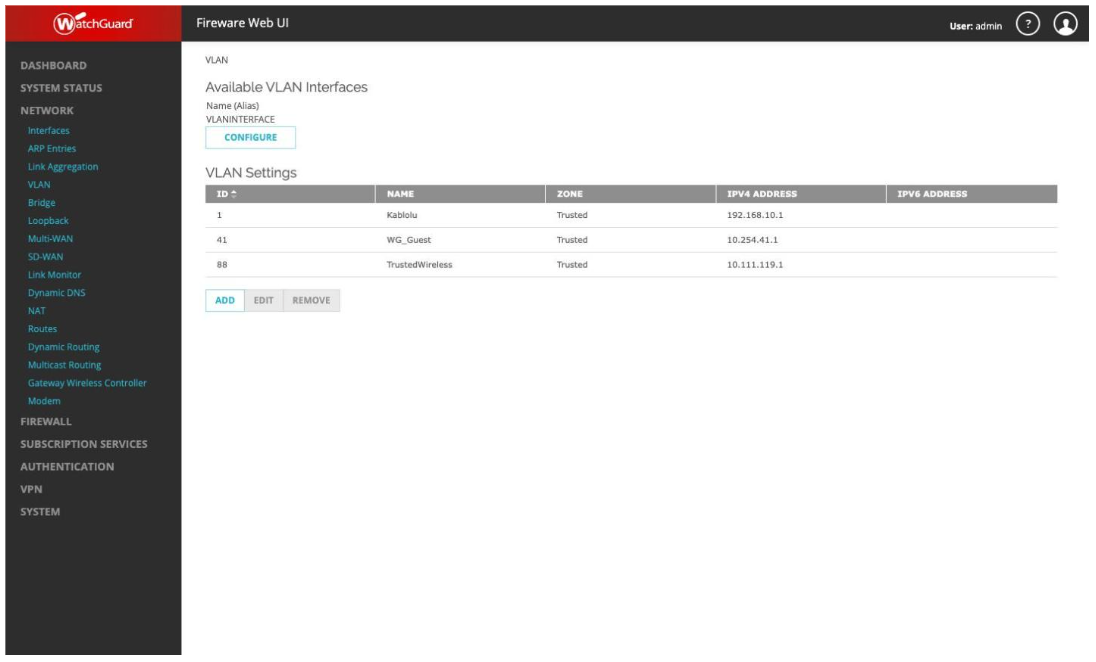
Screenshot 2: Network > VLAN — WG_Guest VLAN/interface.
Step 3: Hotspot and External Guest Authentication (Authentication > Hotspot)
- Go to Authentication > Hotspot; define a hotspot on the Hotspots tab or select the existing one.
- In the Interfaces list find your guest interface (WG_Guest) and assign the hotspot via Select Hotspot.
- Switch to External Guest Authentication and tick Enable External Guest Hotspot.
- Enter the shared secret for SignLogger in Shared Secret and confirm it.
- Enter your SignLogger authentication page address in Authentication URL and Authentication Failure URL (e.g.
http://10.100.100.253:8080/WG-GUEST). - Optionally add pre-authentication destinations (e.g. DNS servers 8.8.8.8, 8.8.4.4) to the Walled Garden.
- Configure guest account limits, Session Timeout and Idle Timeout on the Settings tab.
- Save.
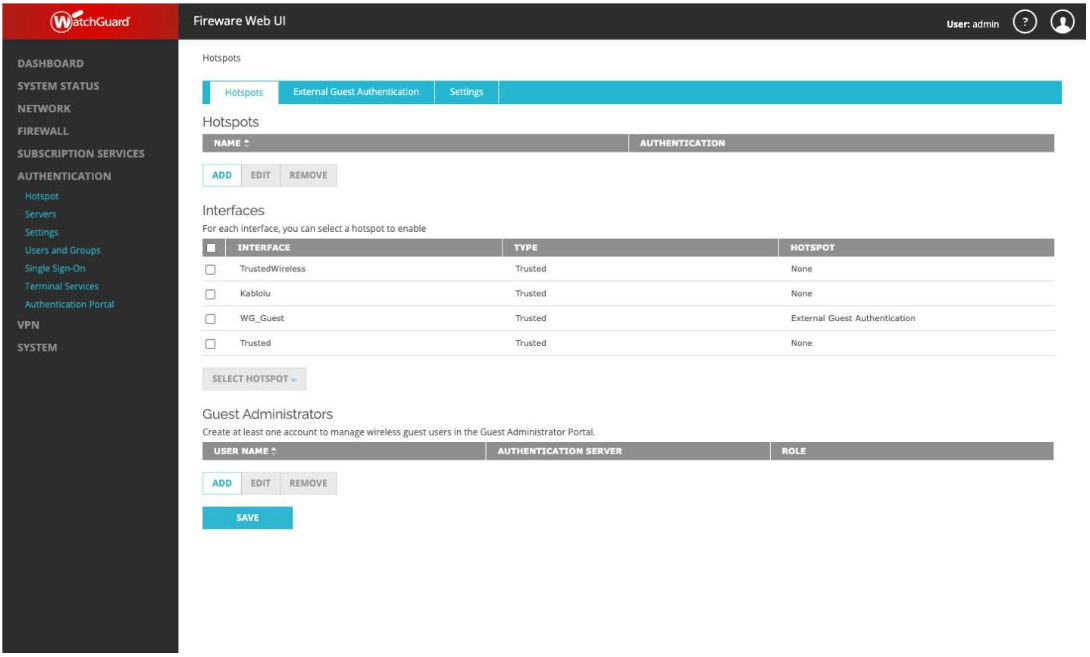
Screenshot 3: Hotspot assignment to WG_Guest.
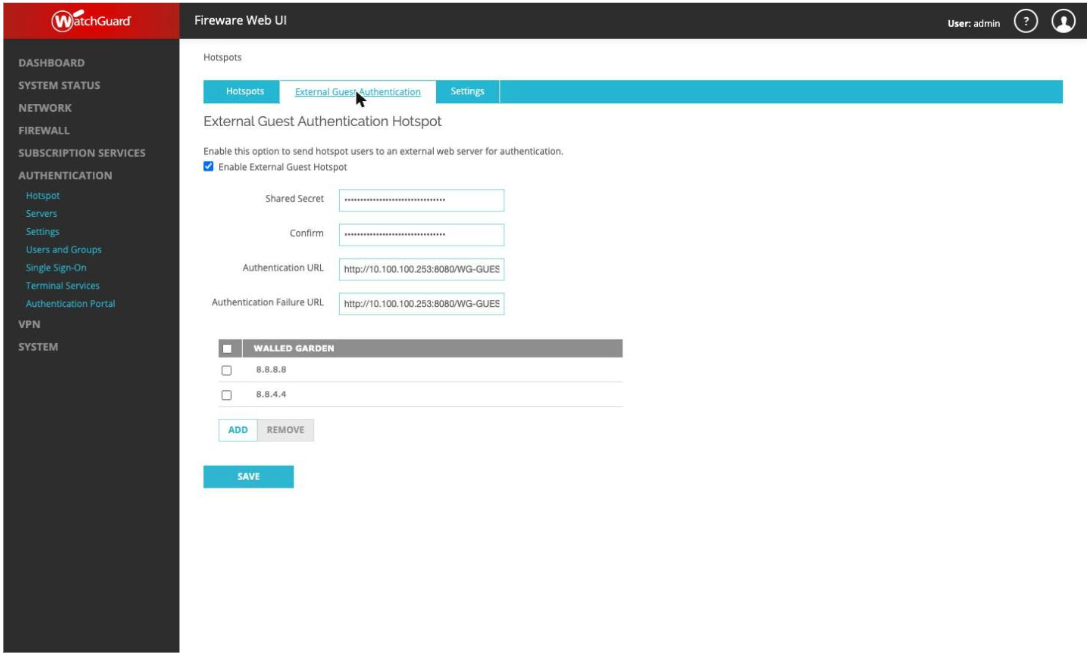
Screenshot 4: External Guest Authentication — SignLogger shared secret and URLs.
Step 4: RADIUS Server (Authentication > Servers)
- Go to Authentication > Servers and click the RADIUS row.
- Tick Enable RADIUS Server.
- Enter the RADIUS/SignLogger address (e.g.
10.100.100.253) and port1812. - Enter and confirm the shared secret.
- Adjust Timeout and Retries (e.g. 10 s, 3 retries).
- Save.
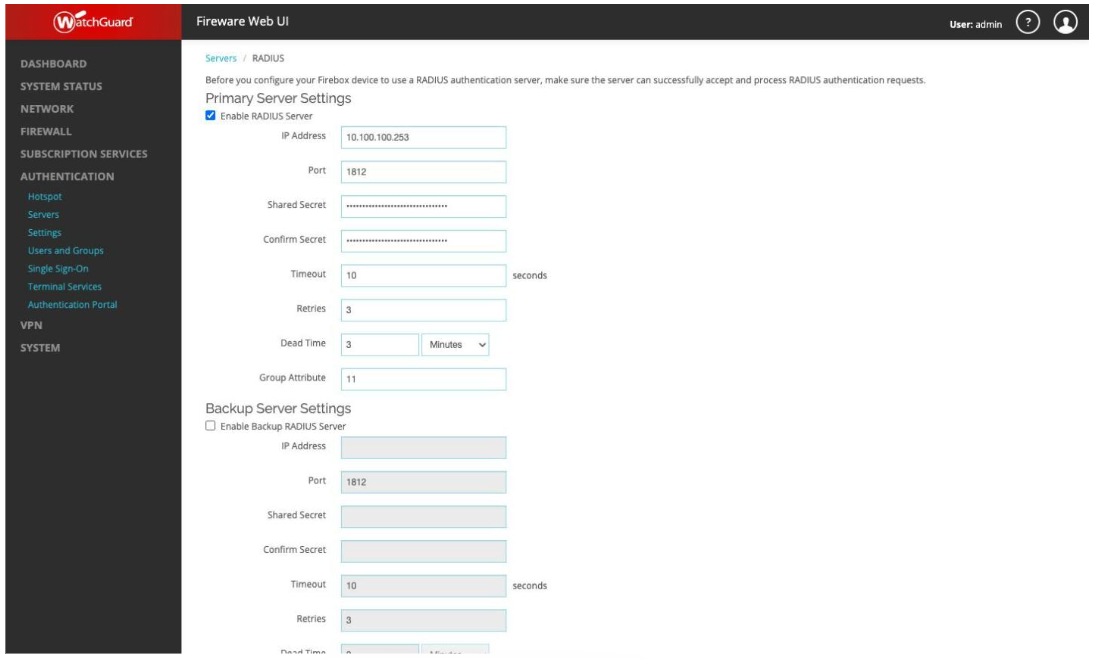
Screenshot 5: Authentication > Servers > RADIUS — IP, port and shared secret.
Step 5: Firewall Policies (Firewall > Firewall Policies)
- Go to Firewall > Firewall Policies and click Add Policy.
- Create an Allow rule from the guest network (e.g.
10.254.41.0/24or the WG_Guest interface) to the SignLogger server (e.g.10.100.100.253) so guests can reach the portal page and the SignLogger API. - Create separate rules allowing the guest interface to SignLogger's external web/hotspot port (e.g. tcp:8080) and from SignLogger to the Firebox's hotspot session port (e.g. tcp:4106).
- Create an Allow rule from the guest interface to the internet (Any-External).
- To isolate guests from the internal Trusted network, add a Deny rule toward internal resources — and note that WatchGuard's default Any-trust rule can grant all Trusted interfaces access to the main LAN, so adjust it to exclude the guest interface.
- Save and verify with a test connection from a guest client.
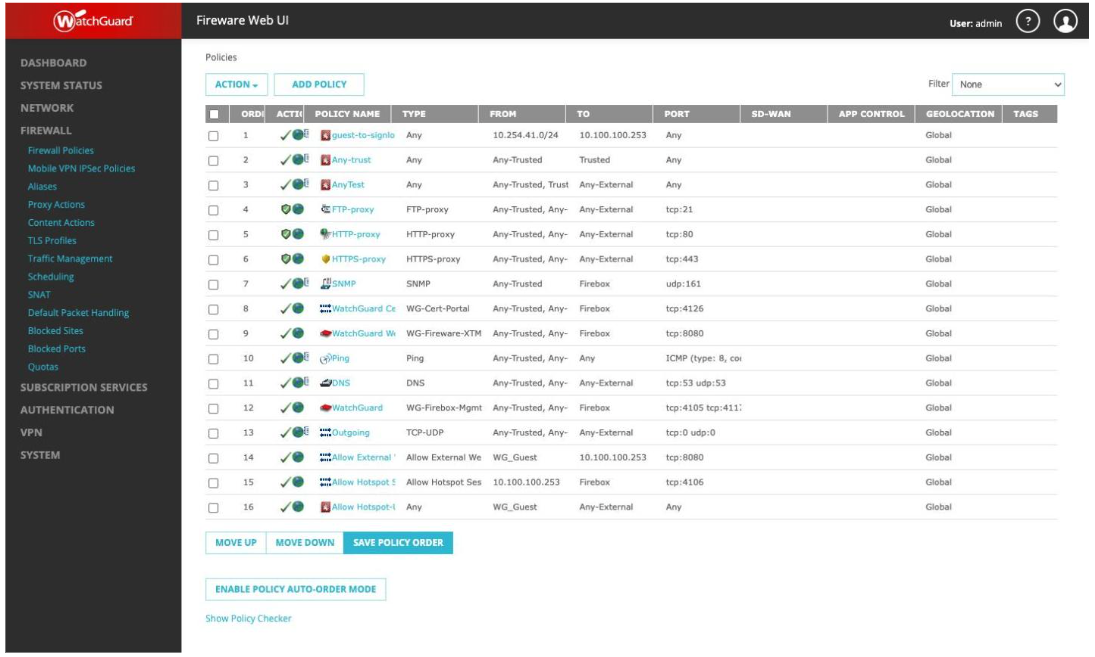
Screenshot 6: Policies allowing the guest network to reach SignLogger.
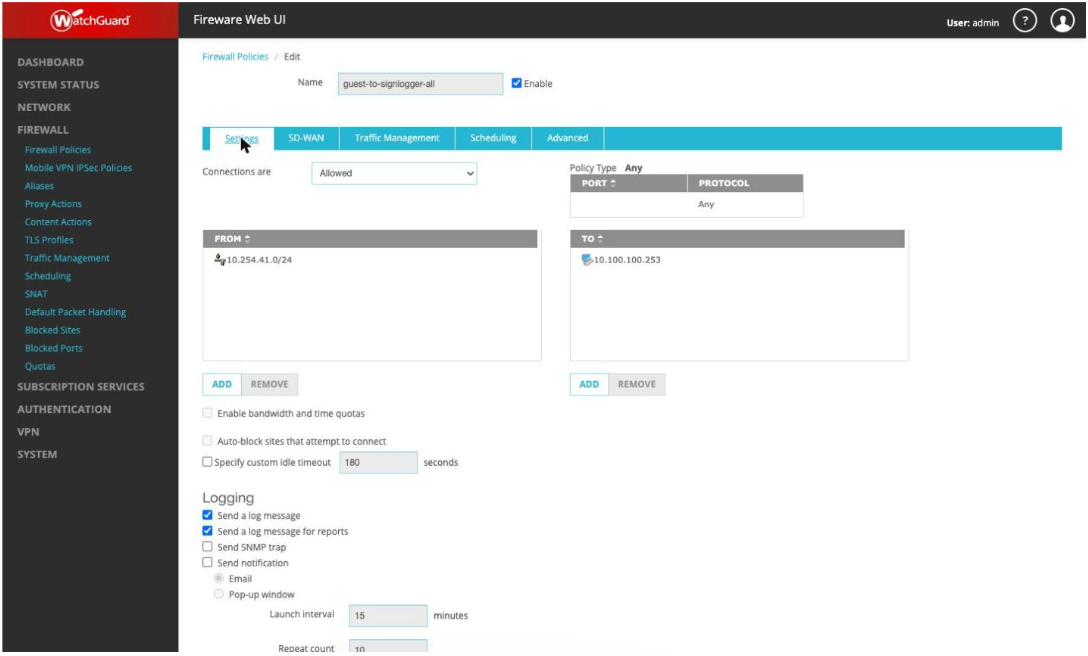
Screenshot 7: guest-to-signlogger-all rule detail (From/To and Logging).
Conclusion
WatchGuard external captive portal integration with SignLogger is completed by configuring syslog, defining the guest VLAN/interface, enabling external guest authentication on the hotspot, defining the RADIUS server and creating the firewall policies. Applied in order, these steps ensure guest authentication and access records are kept fully on SignLogger.
Frequently Asked Questions
What is the External Captive Portal on WatchGuard?
It is the Hotspot feature that moves guest authentication off the WatchGuard onto an external server such as SignLogger.
How is the guest network (WG_Guest) isolated from the internal LAN?
Add a Deny rule from the WG_Guest interface toward the Trusted network under Firewall Policies, and adjust the default "Any-trust" rule so it does not cover the guest interface.
How do I test RADIUS connectivity?
Use the test section on the Authentication > Servers > RADIUS screen, and verify that the shared secret and ports (1812) match on both sides.