This guide explains how the SignLogger Windows agent is installed, how it is managed with groups and policies, and how events coming from agents are found in the Windows Log Search screen. The screenshots were taken from a live SignLogger installation (2 agents: a Domain Controller and a client).
Introduction
The guide answers three questions: where agents are managed, which setting changes what, and how to find the event I am looking for by the shortest route. Every section follows the same order: what is on the screen, what it is for, and what you see when you click something.
| Menu path | What it is used for |
|---|---|
| Agent Management › Agents | Status, group, role, inventory and health of every computer in the fleet |
| Agent Management › Agent Groups | Events to collect, forensic trail, protection and 2FA policy (per group) |
| Agent Management › Agent Licenses | License key pool for agents |
| System › Agent › Agent Settings | Connection port and PSK, global collection default, deployment (MSI + EnrollToken), agent versions |
| Log & Monitoring › Windows Log Search | Searching Windows events and DHCP records coming from agents |
Compatibility: On server operating systems, the agent supports Windows Server 2016 and later; all features work on these versions. Older server versions are not supported.
Intended audience: SignLogger administrators, SOC analysts and field engineers who perform the installation.
Architecture: how the agent works
The Windows agent is a service that reads the event logs on each computer, filters them according to its group's policy and sends them to SignLogger. It works in both directions: events flow from the computer to the server, and the policy (which channel, which Event ID, which feature) flows from the server to the agent.
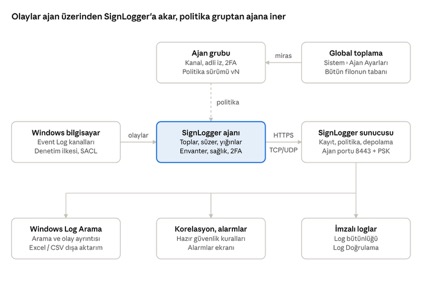
Figure 1 – Windows agent architecture: event flow and policy flow
For an event to appear in search, every link in the chain must be in place: Windows must generate the event (audit policy), the agent must collect that channel (group policy) and the agent must be able to reach the server (port and PSK). During enrollment, the agent locates SignLogger using the EnrollToken and verifies the server with its signing key.
Agents screen (Agent Management › Agents)
This is the fleet's health table at a glance: the number cards at the top show the problem, and the list below shows which computer it is. Start your day here; every non-zero card means work to do.
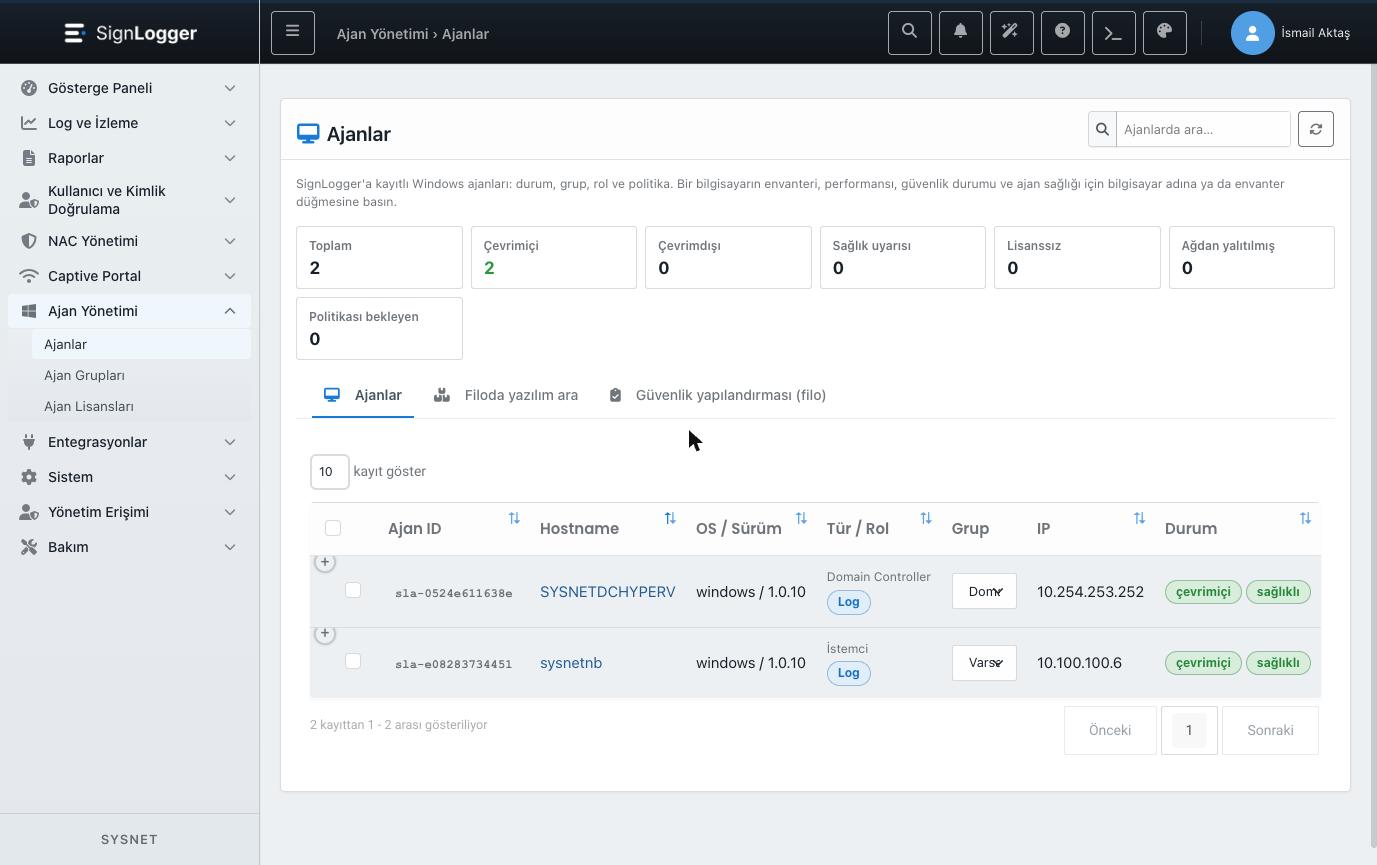
Figure 2 – Agents list and status cards
Status cards
| Card | Meaning | What to do if it is not zero |
|---|---|---|
| Total | Number of agents registered with SignLogger | Compare it with the number of computers on which the agent is installed; if any are missing, there is an installation/enrollment problem |
| Online | Agents whose latest heartbeat arrived on time | — |
| Offline | Agents whose heartbeat is not arriving | Check whether the computer is powered off, whether the service is running and whether port 8443 is reachable |
| Health warning | One of the agent's own health checks has failed | Open the Inventory › Agent Health tab |
| Unlicensed | Agents with no license key assigned | Assign a key from Agent Licenses or enable automatic assignment |
| Network-isolated | Computers cut off from the network by an active response | Remove the isolation when the investigation is finished |
| Pending policy | Agents that have not yet received the group's new policy version | It resolves shortly if the agent is online; if it persists, examine the agent |
List columns
Agent ID (sla-…): the agent's permanent identity. It stays the same even if the hostname changes.
Hostname: the computer name. Clicking it opens the computer's inventory page.
OS / Version: the operating system and agent version (e.g. windows / 1.0.10).
Type / Role: the computer type (Domain Controller, Client) and enabled roles (Log, 2FA).
Group: the group selected from the drop-down list. When you change it, the computer receives that group's policy.
IP and Status: the last reported address; online/offline and healthy/warning badges.
With the checkboxes at the far left you can select multiple agents and perform the Assign Selected to Group, Isolate Selected from Network and Clear Selection actions in bulk. The search box at the top right filters the list.
Row details and action buttons
Clicking the + sign at the left of a row expands the policy version, the last seen time and the action buttons. "current v14" indicates that the agent has applied the group's latest policy (version 14).
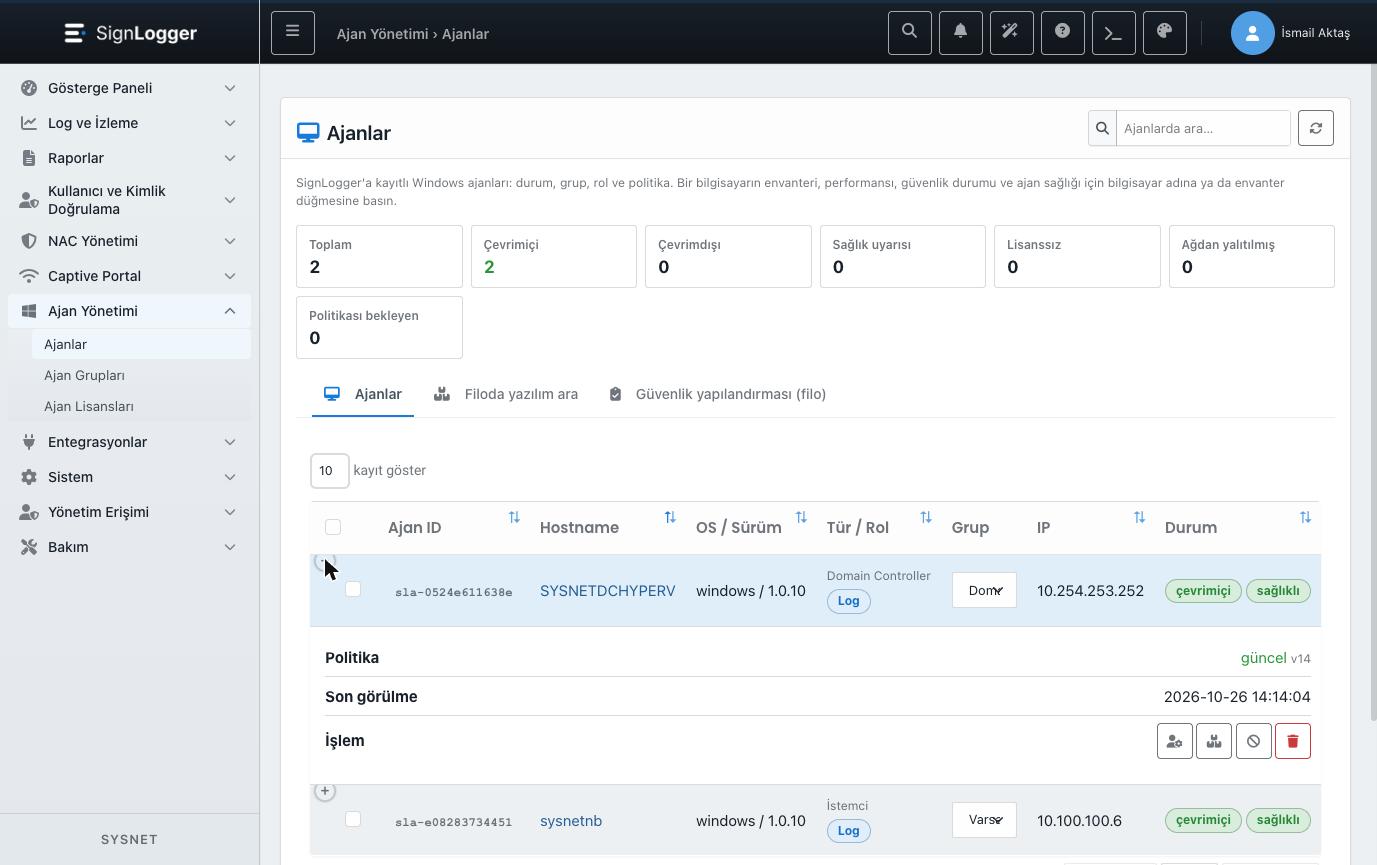
Figure 3 – Row details: policy, last seen and actions
| Button (left to right) | What it does | What you see when you click |
|---|---|---|
| Edit roles | Role exception specific to this agent (Log Collection, 2FA) | The Agent Roles window |
| Inventory | The computer's inventory page | Summary, Performance, Hardware, Security, Software, Services, File Changes and Agent Health tabs |
| Revoke token (re-enroll) | Revokes the agent's identity token; the agent is forced to re-enroll | The agent cannot connect with its current token and re-enrolls with the EnrollToken |
| Delete agent | Removes the agent record from SignLogger | The record disappears from the list; the computer does not return until the agent is reinstalled/re-enrolled |
Role exception
Roles normally come from the group. Follow group inherits the group's setting; On/Off overrides the group for this computer only. The "Group → Effective" column on the right side of the window shows which value ultimately applies.
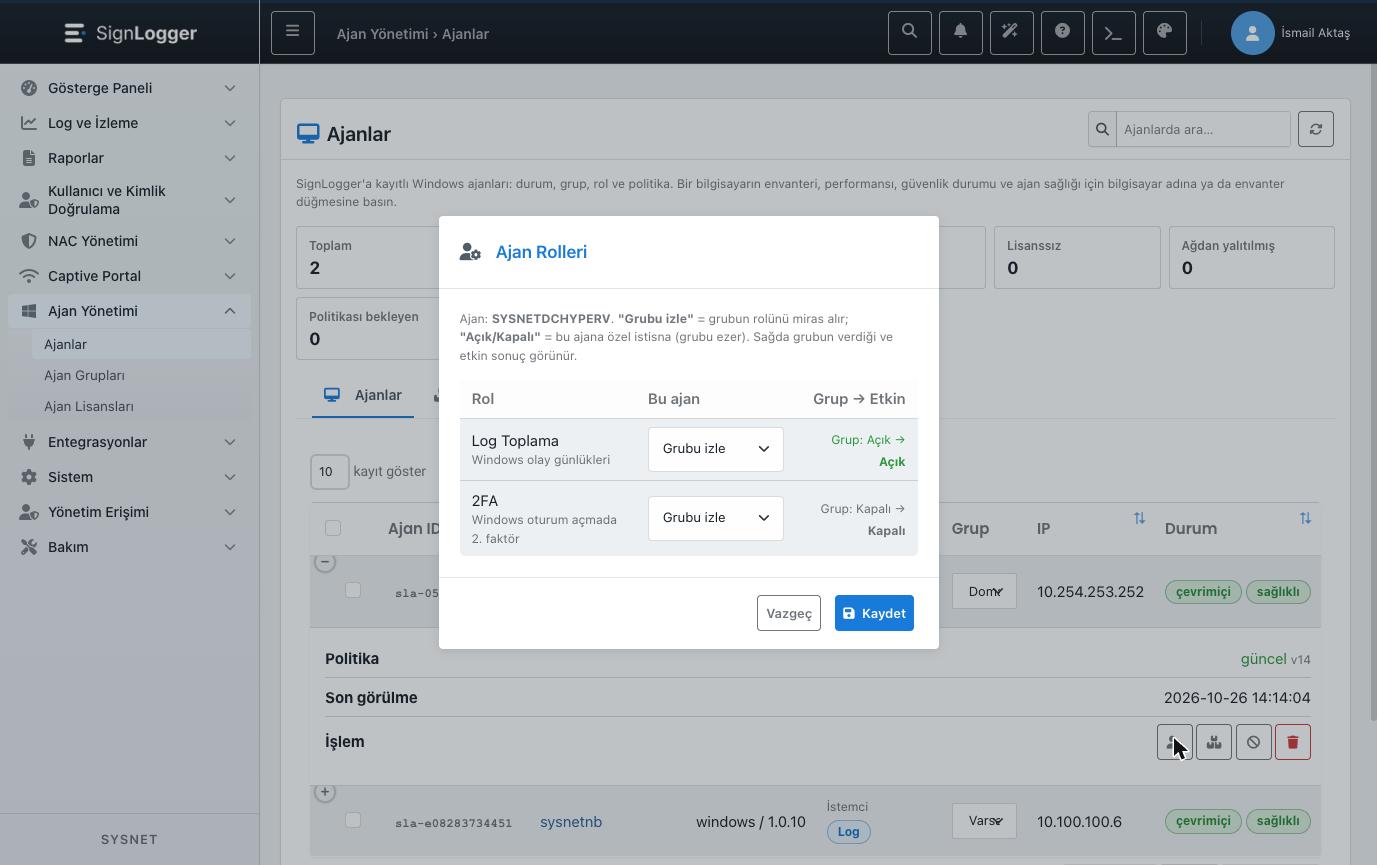
Figure 4 – Agent Roles window
Computer inventory
Clicking the hostname or the Inventory button opens the computer's inventory page. At the top are status badges, the agent ID, agent version, group, IP and last seen time; the tabs are on the left. The red number next to a tab is the number of items in that tab that need attention. The images below were taken from the client agent sysnetnb.
| Tab | What it shows | When to look |
|---|---|---|
| Summary | Items needing attention (Critical/Warning), operating system, hardware model, processor and memory usage, security score, last inventory collection and last measurement | A first look at the computer |
| Performance | Current CPU, memory, network, disk usage, uptime, process count; last 24 hours charts; per-core load | "The computer is slow" complaints, abnormal traffic |
| Hardware | Manufacturer/model, serial number and UUID, processor, memory, BIOS; network adapters (MAC, type, status, address, gateway, DNS) | Asset inventory, MAC/IP matching, NAC |
| Security | Results of CIS-based checks, their severity, observed value and remediation step | Hardening work, auditing |
| Software | Installed software: name, version, publisher, architecture | Unauthorized software, outdated versions, license compliance |
| Services | Windows services: name, status, startup type, account it runs under | Suspicious services, stopped critical services |
| File Changes | Recent changes to monitored paths and registry keys: time, what happened, path, who, before/after | Who changed a critical file/setting |
| Agent Health | Per-channel collection status, network isolation permission, the agent's resource usage | Logs arriving incomplete, agent health warning |
Summary. The "Items needing attention" list presents each issue with a severity badge, and the button on the right takes you to the relevant tab. In the example, 1 high-severity (Critical) and 10 other security checks remain, with a score of 70/100. On a newly installed agent, the "No inventory has been received from this computer yet" notice is normal during the first hour; the inventory is refreshed hourly.
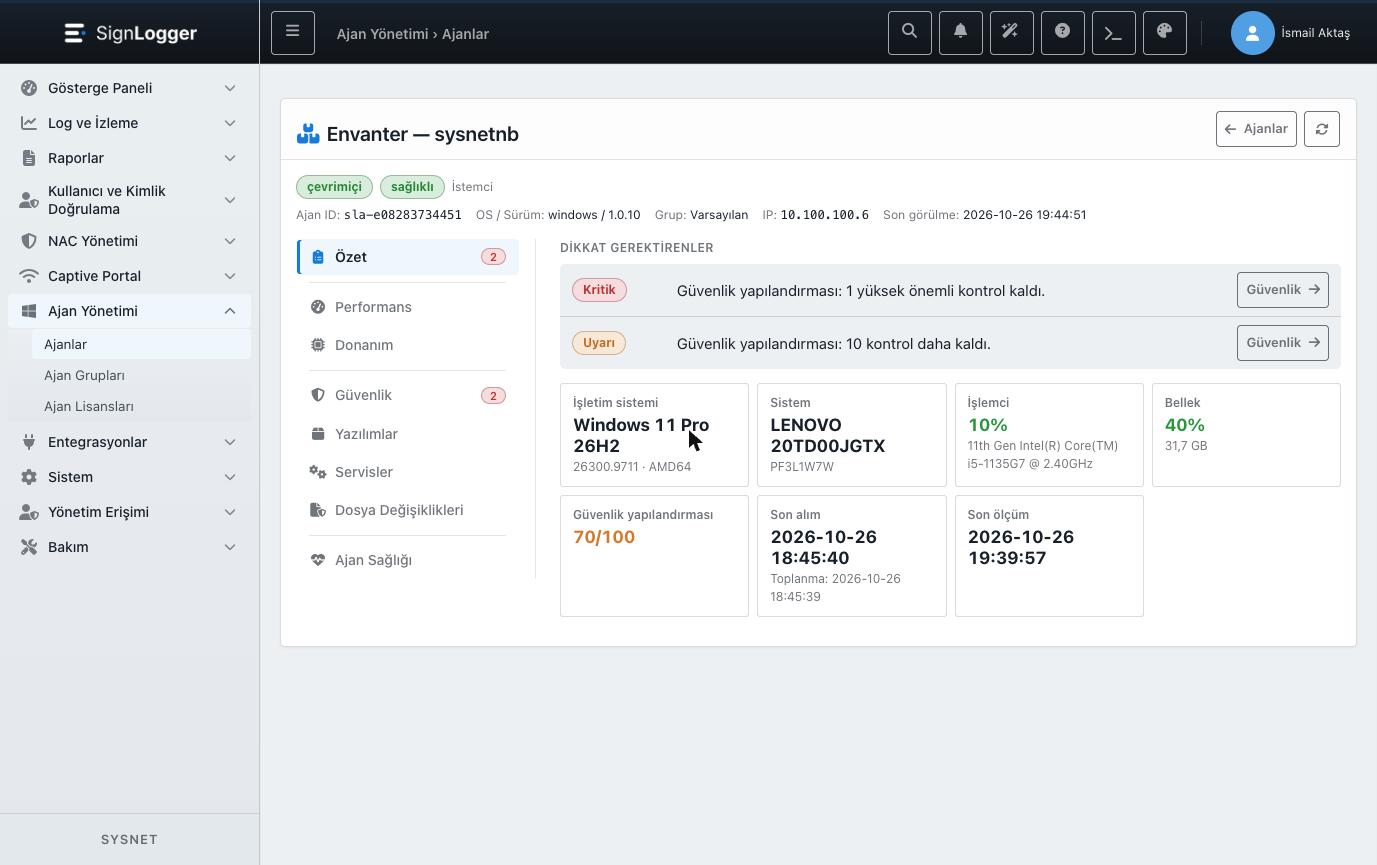
Figure 5 – Inventory — Summary (sysnetnb)
Performance. The cards at the top show the latest measurement, and the "peak" values show the highest point of the last 24 hours. In the network chart, the upper side is received traffic and the lower side is sent traffic; a single sharp spike indicates a moment of large download/upload, and it is a good starting point for checking what was running in Windows Log Search at that hour.
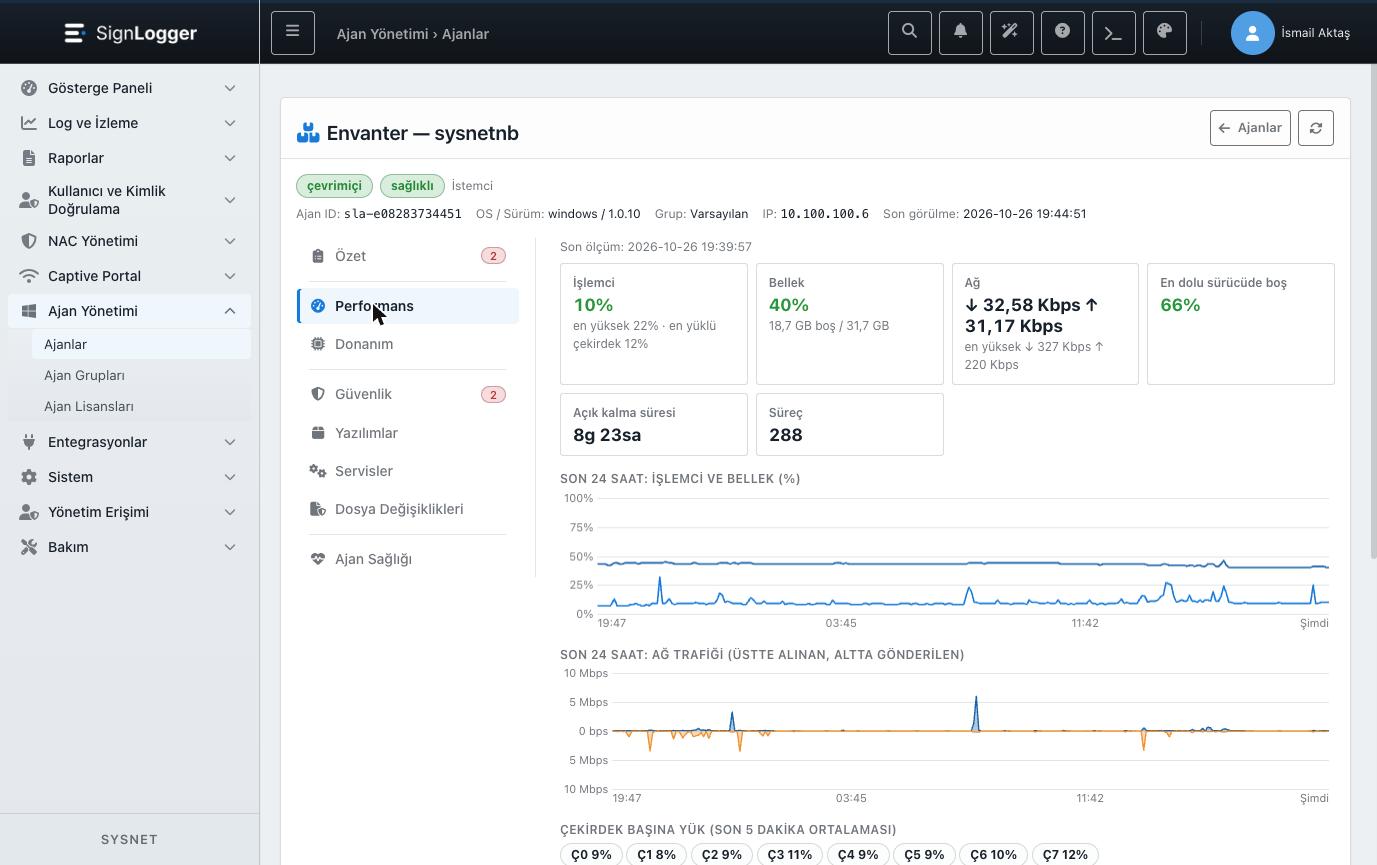
Figure 6 – Inventory — Performance
Hardware. The serial number and UUID are used in asset tracking, and the network adapters table is used for MAC-IP matching. VPN and virtual adapters are also listed; those shown as "not connected" are not in use at that moment.
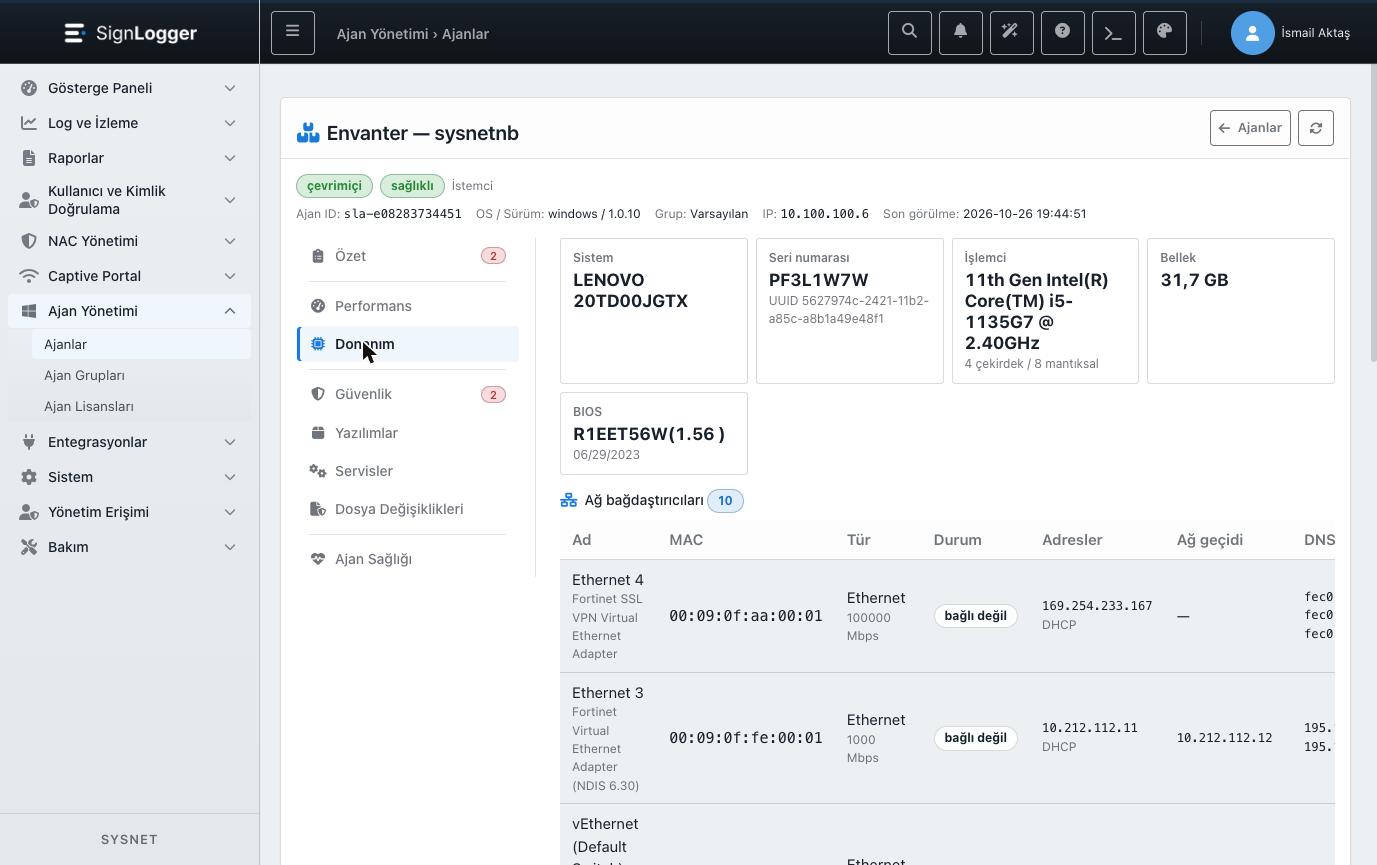
Figure 7 – Inventory — Hardware and network adapters
Security. Each row is a check: Result (passed/failed), Severity, Check, Observed (the actual value on the computer; absent = the setting has never been defined) and Remediation (the setting to apply in a GPO or local policy). The + button on a row expands the details. Close the "high" severity ones first.
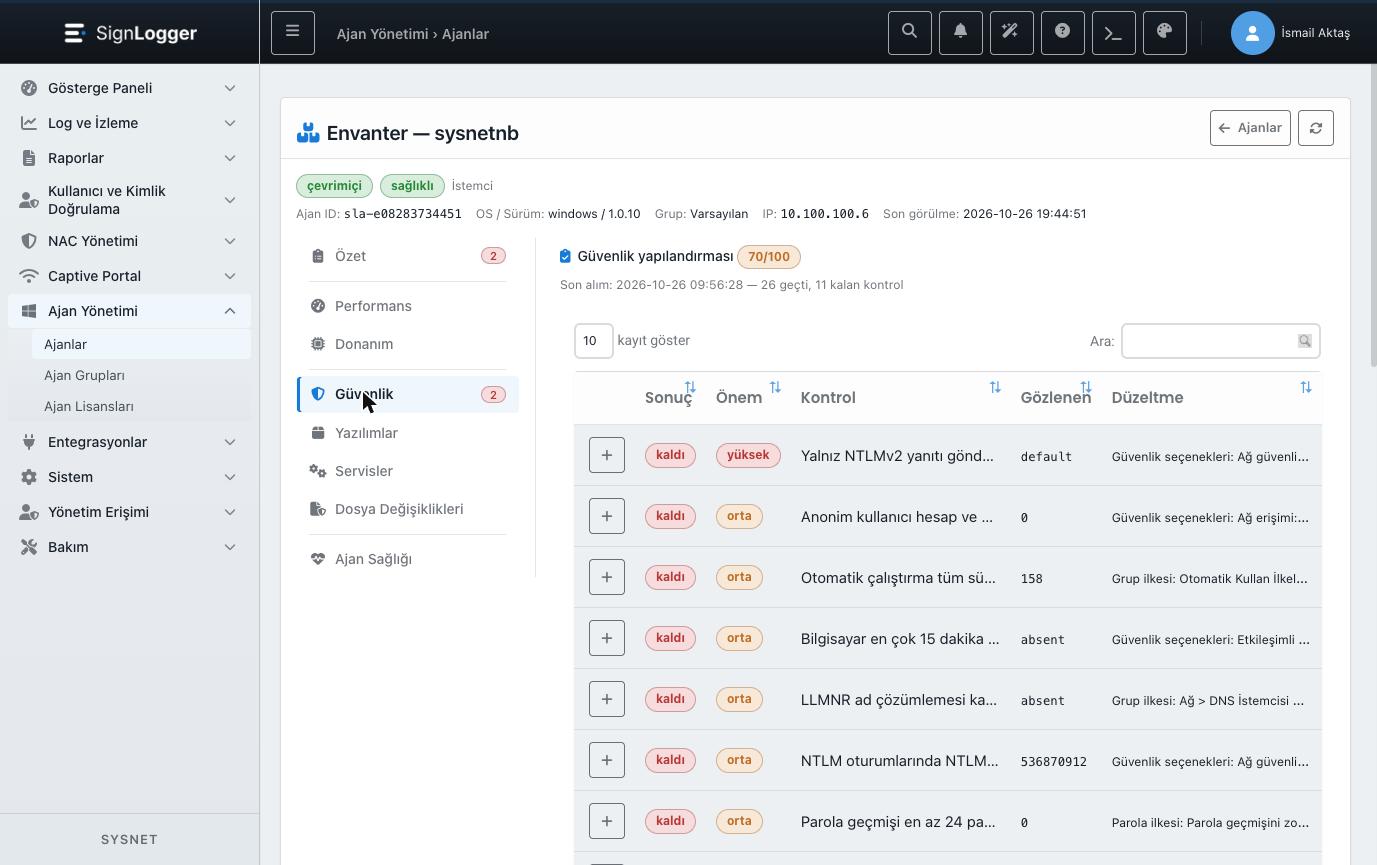
Figure 8 – Inventory — Security checks
Software. Installed software and its versions; filter with the search box. Remote access tools (Chrome Remote Desktop Host in the example) and file transfer tools (FileZilla) should be reviewed according to company policy. To search across the whole fleet, use Agents › Search software across the fleet.
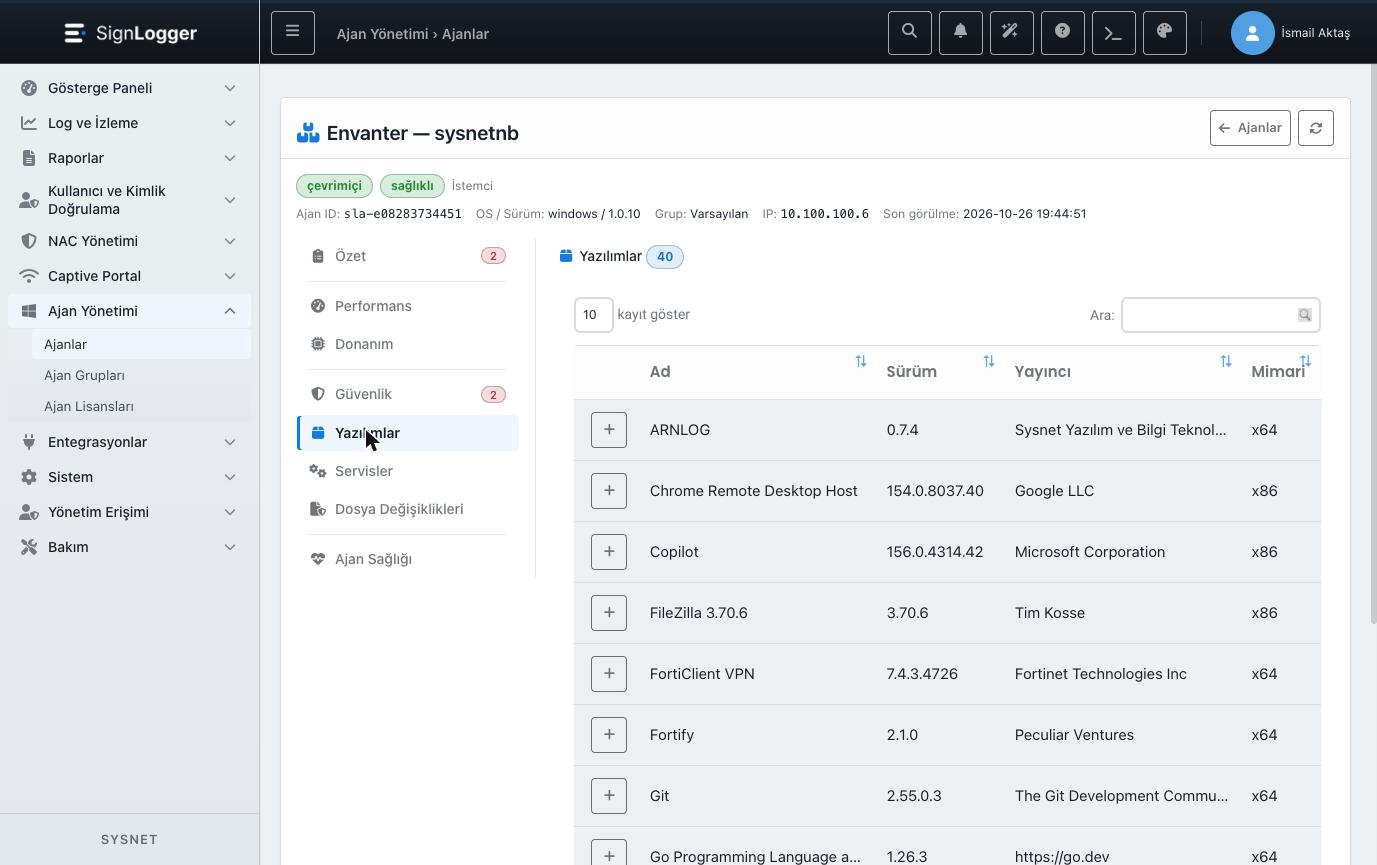
Figure 9 – Inventory — Software
Services. The service name and short name, status (running/stopped), startup type (automatic/manual/disabled) and service account. A service you do not recognize that starts automatically under LocalSystem should be compared against New Service (7045) in Windows Log Search.
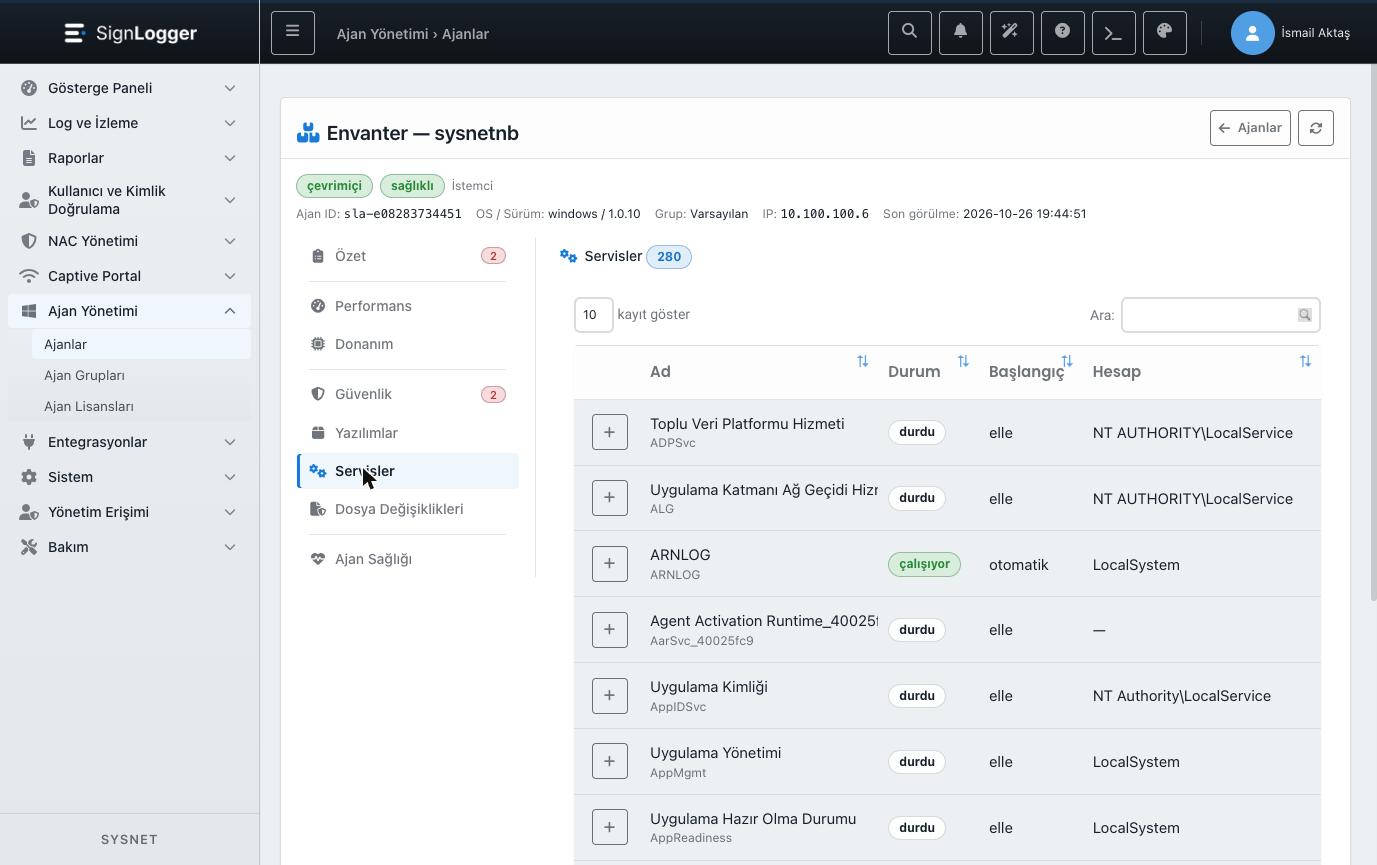
Figure 10 – Inventory — Services
File Changes. When "File and registry monitoring" is enabled in the group, the recent changes to monitored paths: Time, What happened (changed, opened (read), added, deleted), Path, Who and a before/after summary. If the "Who" column says not found, the user who made the change could not be matched from the Windows audit record; check that the SACL and File System auditing are enabled on that path.
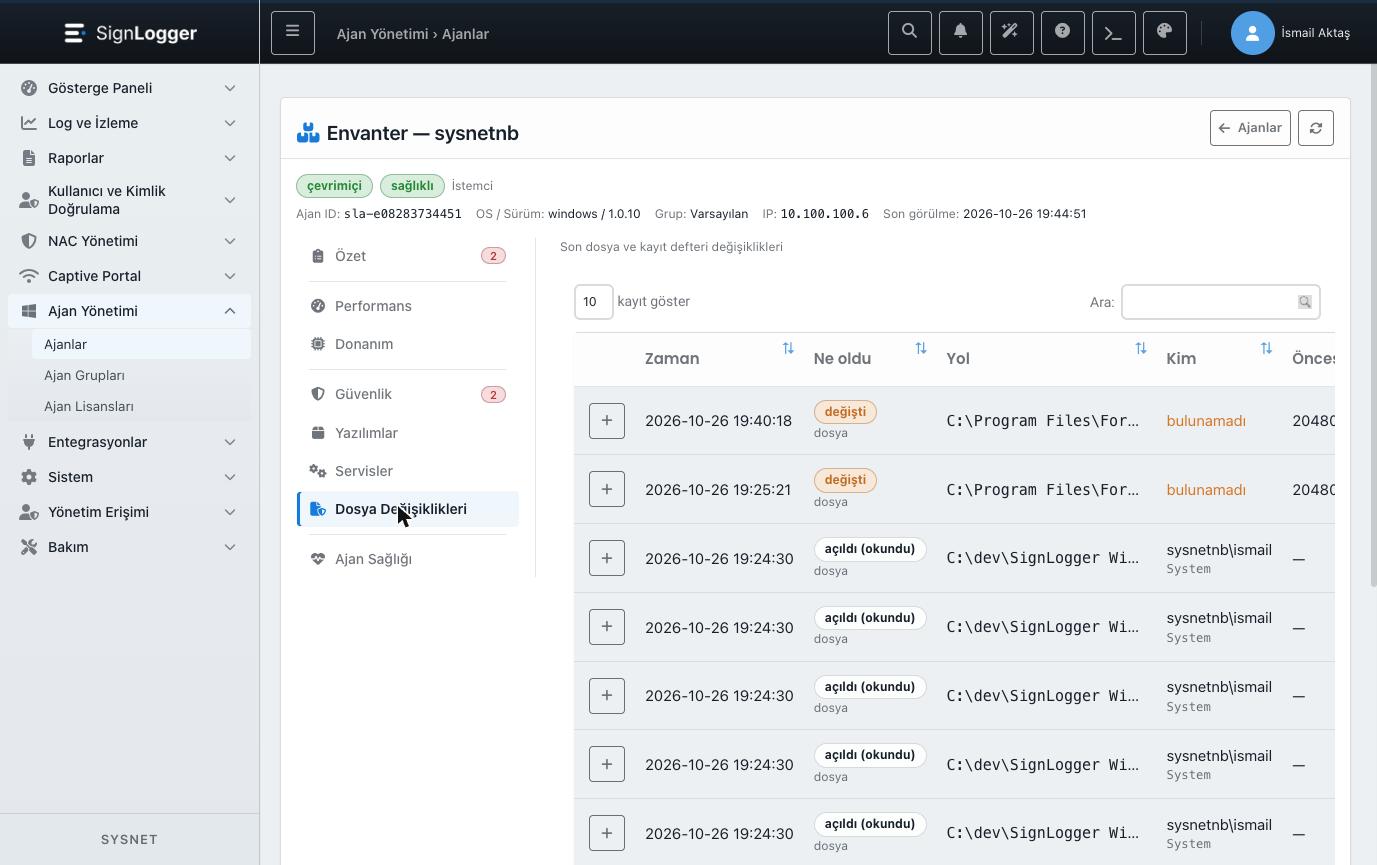
Figure 11 – Inventory — File Changes
Agent Health. There is one row for each collected channel. "behind N" means N events are waiting to be sent on the channel; 0 or a small number is normal, and if it keeps growing, the agent cannot send. "not present on this computer" indicates that the channel does not exist on this computer (e.g. DNS Server and Directory Service on a client, or Sysmon if Sysmon is not installed) and is not an error.
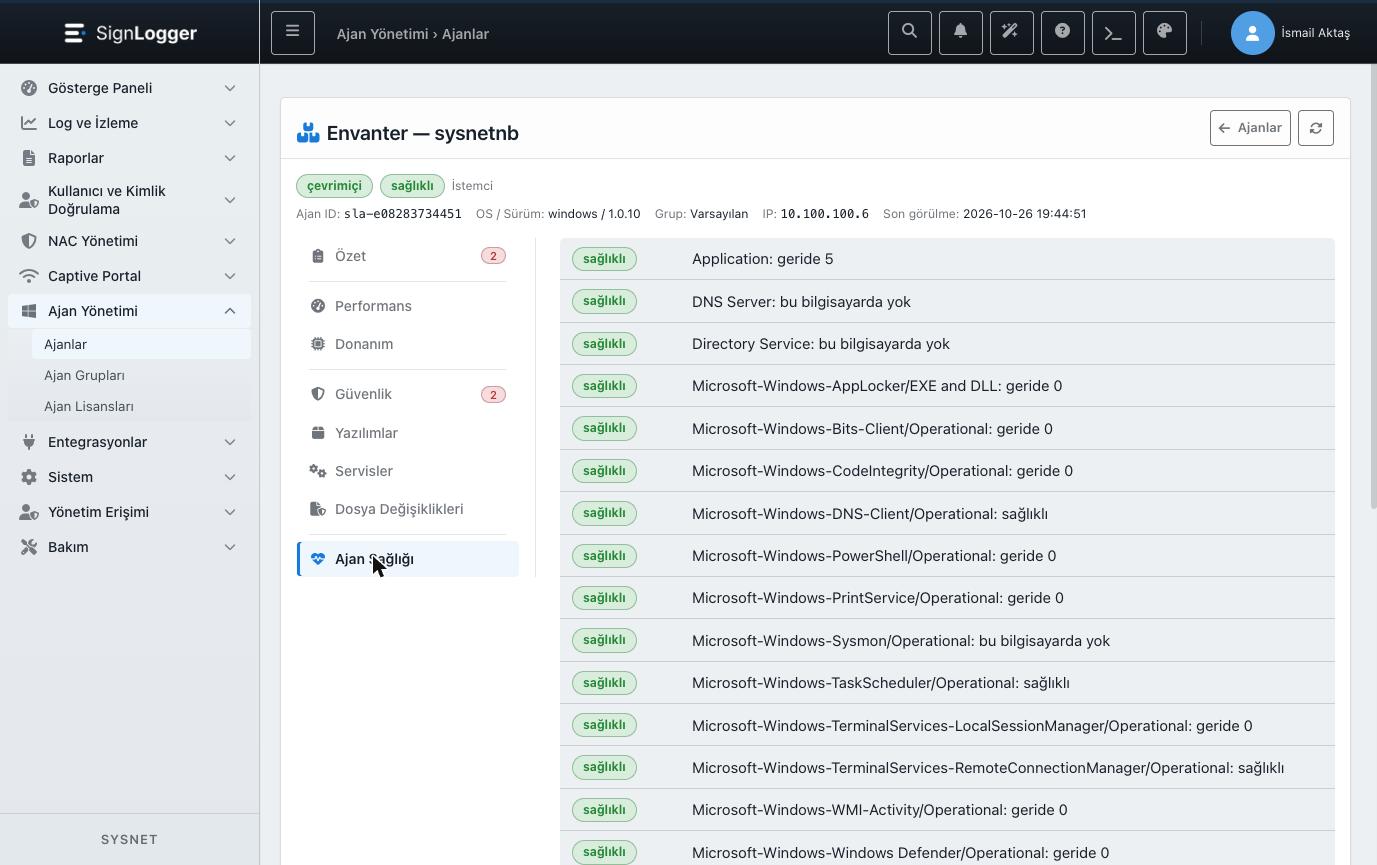
Figure 12 – Inventory — Agent Health (per channel)
Fleet tabs
Search software across the fleet: type a software name (e.g. Chrome, AnyDesk); the computers on which it is installed and their versions are listed. Ideal for finding unauthorized remote access tools.
Security configuration (fleet): shows the most frequently failed CIS Level 1-based checks along with their remediation steps, and the lowest-scoring computers. In the example, the 1 evaluated computer has a score of 70/100, and 11 checks remain.
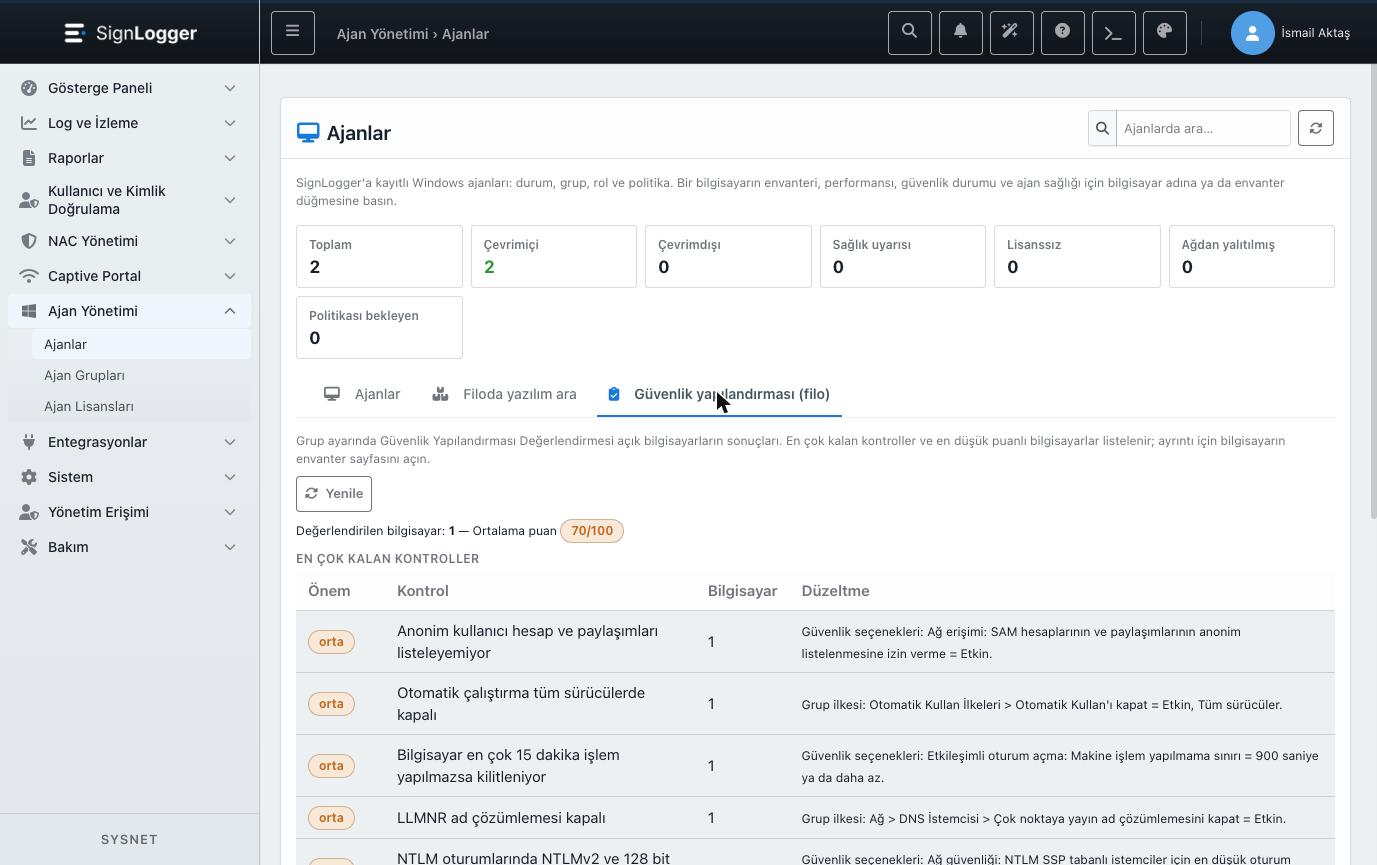
Figure 13 – Fleet security configuration
Setup and connection (System › Agent › Agent Settings)
How the agent connects to SignLogger, how it is deployed, and the default collection policy that groups inherit are managed on the Agent Settings page under the System menu, across four tabs. These settings affect the entire fleet; they must be correct here before you configure group settings.
Connection
Listening port: the port agents connect to, 8443 by default. This port must be open on every firewall between the agent and SignLogger.
Shared Password (PSK): the shared secret agents use to connect to the system, at least 8 characters. If "Status: set ✓" is displayed, it is defined.
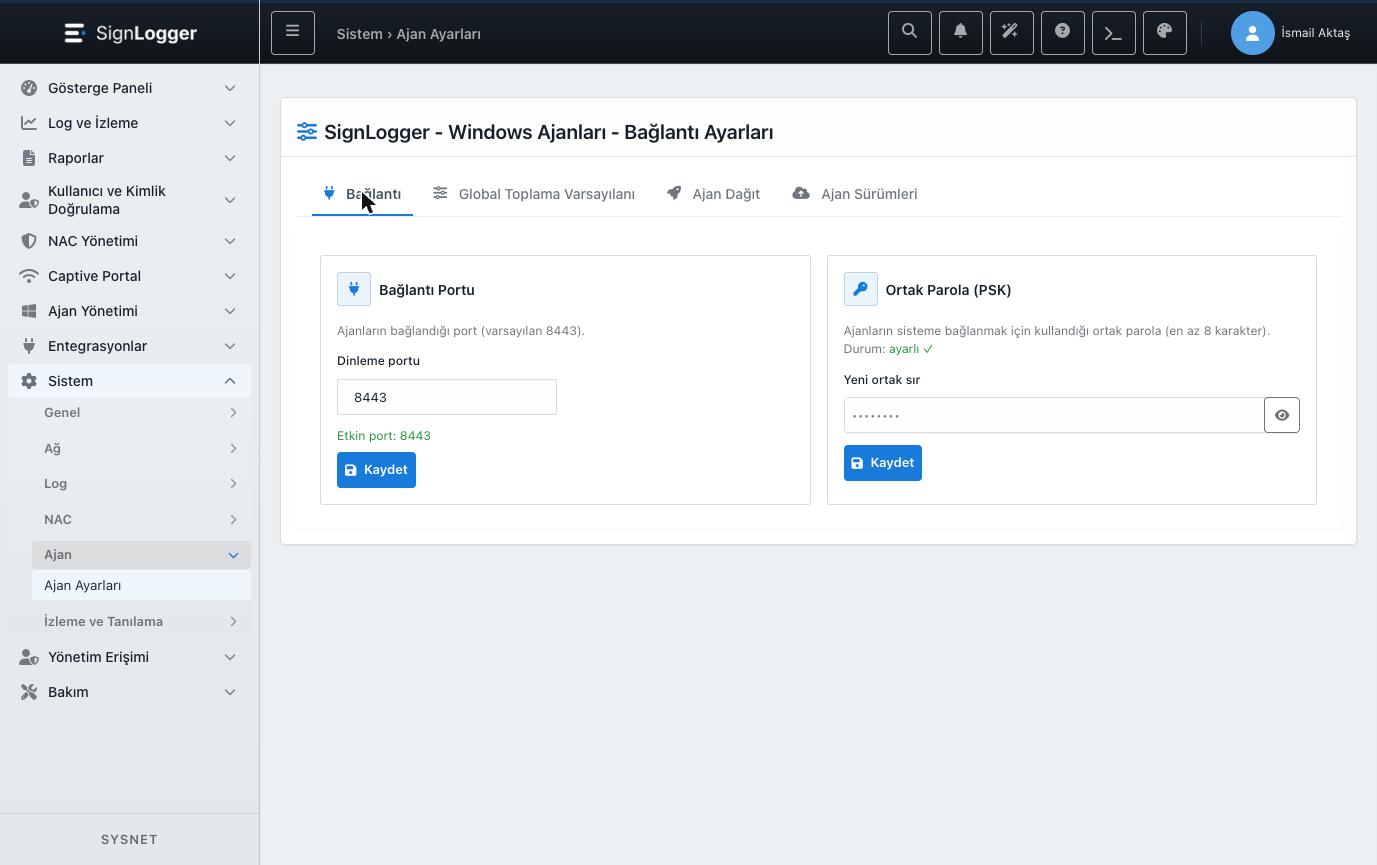
Figure 14 – Connection port and PSK
Deploy Agent (zero-touch installation)
With a single signed MSI and a single EnrollToken value, computers install and enroll themselves through GPO. The token carries the host, port, and server certificate fingerprint (the "Meta" line on the page).
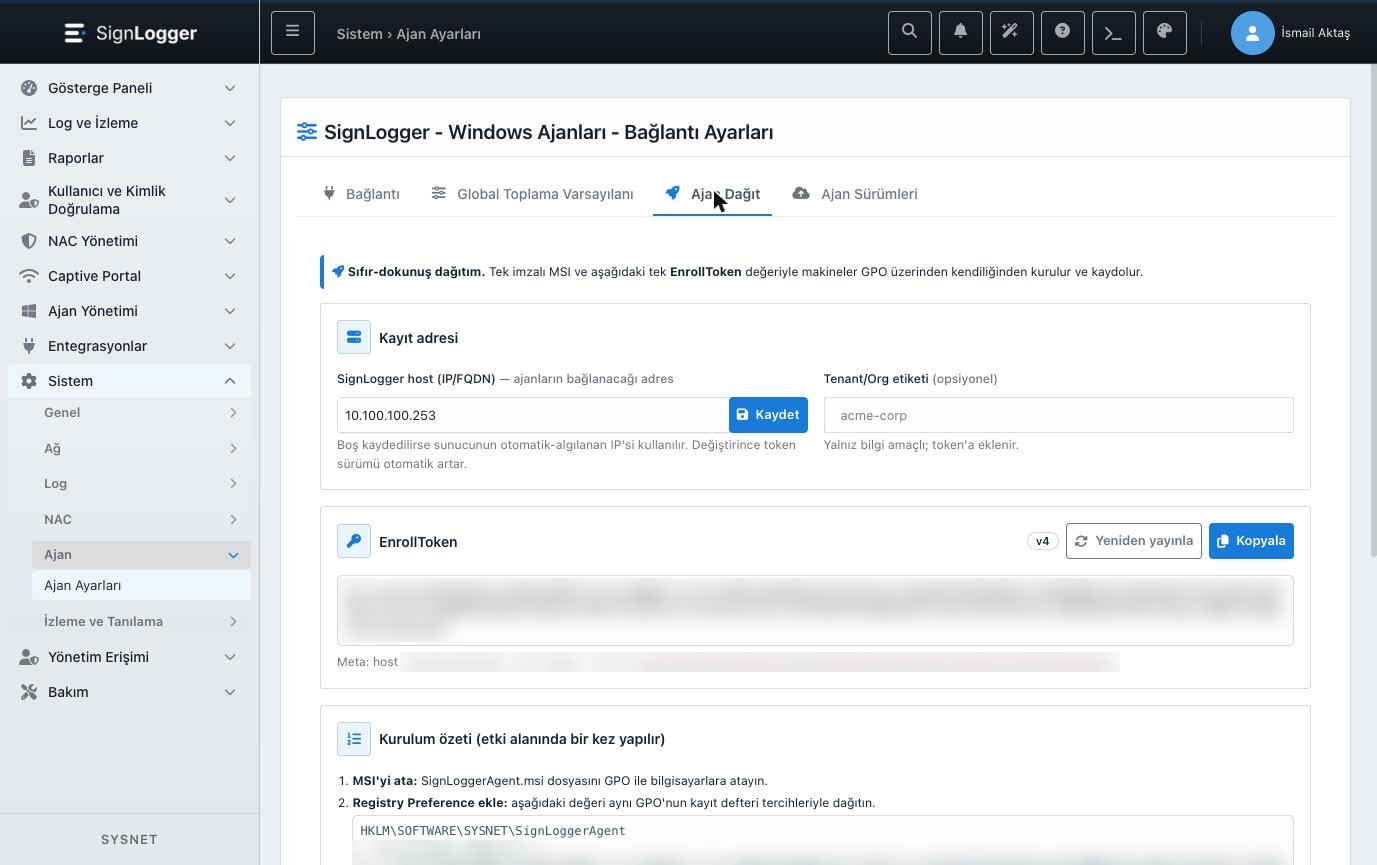
Figure 15 – Deploy Agent tab (token blurred)
Enrollment address: the SignLogger IP/FQDN that agents will connect to. If left empty, the automatically detected IP is used. When it is changed, the token version increases automatically (v4 in the example).
Assign the MSI: assign the signed SignLoggerAgent.msi provided by SYSNET to computers through GPO (the MSI is not hosted on the SignLogger server).
Add a Registry Preference: in the same GPO, deploy the EnrollToken (REG_SZ) value under HKLM\SOFTWARE\SYSNET\SignLoggerAgent.
Verify: after the computer's policy refresh, it should appear as "online" in the Agents list.
Active response (network isolation) works only on computers where it was allowed at installation time: the MSI property RESPONSEENABLED=1. This permission cannot be granted later from the back end; if you need it, grant it at installation.
The server signing key (ed25519) is the key agents use to verify SignLogger. Key rotation is performed in three steps: Start key rotation → Switch to the new key (Cancel rotation if necessary). Download the password-protected copy and store it off the device; if the key is lost, agents cannot verify the server.
Global Collection Default
The collection policy is at the top of the hierarchy: groups with "Use global policy" turned on in their group settings use the channels and event selection defined here. If a group makes its own selection, the global setting no longer applies to that group. Changes are sent to agents with Publish Policy; the published version is shown in the header (v5 in the example).
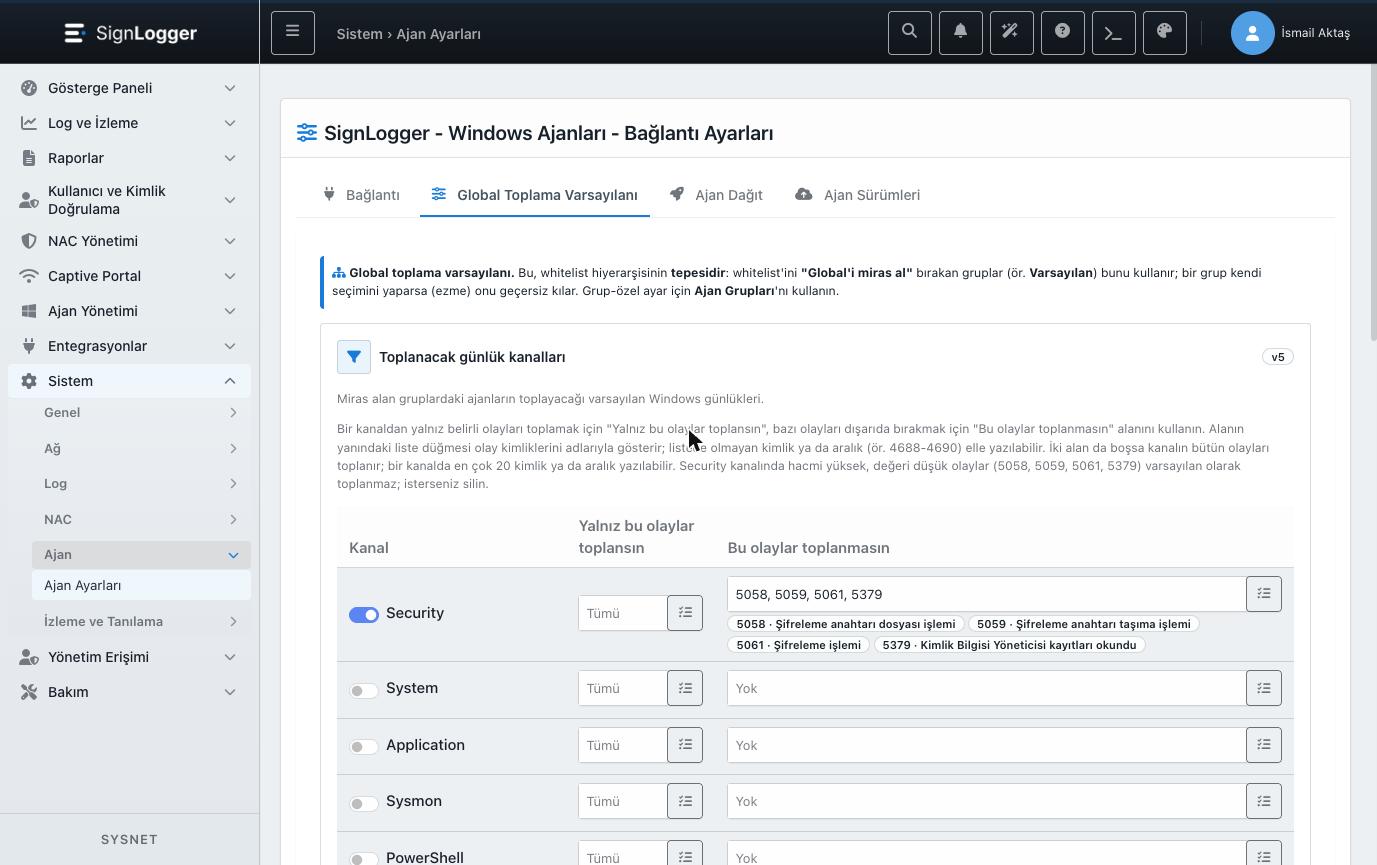
Figure 16 – Global collection default
Channels: Security, System, Application, Sysmon, PowerShell, Windows PowerShell, Microsoft Defender, Task Scheduler, PrintService, RDP (LSM and RCM), WMI Activity, Windows Firewall, AppLocker, BITS Client, Code Integrity, DNS Client, and, meaningful only on a DC, Directory Service and DNS Server.
Event filter: "Collect only these events" (allowlist) or "Do not collect these events" (blocklist). If both are empty, all events of the channel are collected. Up to 20 IDs or ranges per channel (e.g. 4688-4690).
In the Security channel, the high-volume, low-value events 5058, 5059, 5061, 5379 are excluded by default.
Poll interval and Heartbeat (seconds), and Excluded processes / users: the process name or full path is matched exactly against the event's process field; the event text is not searched.
Agent Versions
Agent updates are defined here as releases: variant (e.g. dc), version, sequence number, rollout percentage, and status. Fleet Version Distribution shows how many agents are on which version, and Failed Updates shows the agents that could not be updated. Start a new version with a low rollout percentage and increase it if there are no failed updates.
Agent groups and policy (Agent Management › Agent Groups)
The unit of agent configuration is the group: which events are collected, forensic trail features, protection, and 2FA are defined on the group and apply to all computers in it. An exception for a single computer can be made only through roles (from the Agents screen).
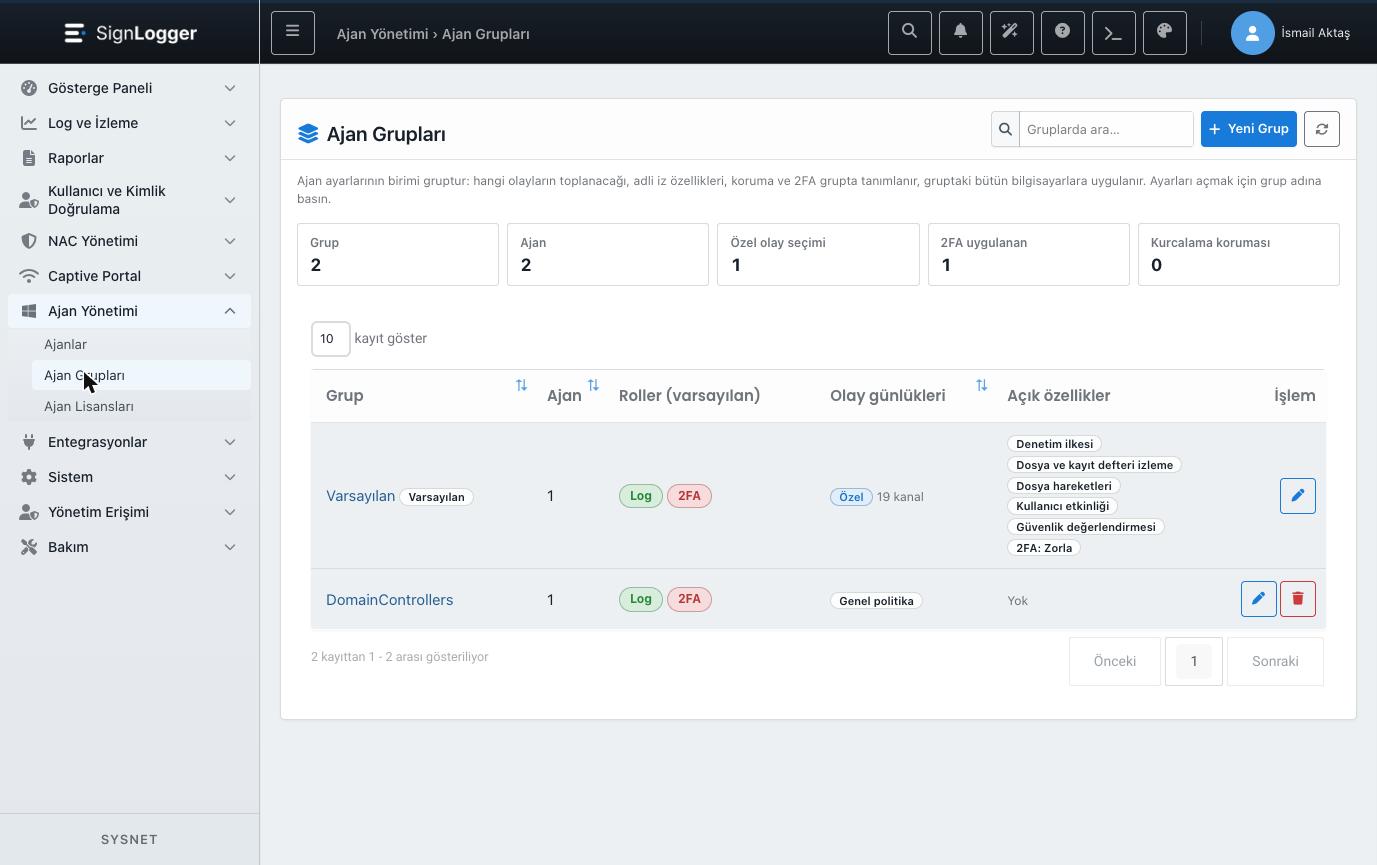
Figure 17 – Agent Groups list
The list shows each group's agent count, default roles, event log source ("Global policy" or "Custom N channels"), and enabled features. Use New Group to add a group; clicking the group name or the pencil icon opens the edit screen. The default group cannot be deleted or renamed.
Group edit screen
The menu sections are on the left, and the panel on the right shows that section's settings. The "Policy version" at the top increases with every Save; when agents receive the new version, "current vN" is shown in the Agents list. Load Defaults returns the group to the product defaults.
| Section | What it does | Note |
|---|---|---|
| General | Group name and default roles (Log Collection, 2FA: Inherit / On / Off) | Inherit = default by agent type |
| Event logs | Channels to collect and event filters | If "Use global policy" is turned off, the group keeps its own copy |
| Log files | Text log file collection | Off by default |
| Sending and performance | Sending interval, batch size, transport (HTTPS/TCP/UDP), syslog format, worker count, local log file | HTTPS is the recommended transport |
| Audit policy (Forensic trail) | Enables process creation, command line, USB, account/policy change, and PowerShell script auditing that Windows does not record by default, and enlarges the Security log | If one is turned off, the agent re-enables it every hour and raises an alert |
| File and registry monitoring | Add/change/delete on the listed paths and HKLM keys; who, with which program | Up to 20,000 files; network paths are not supported |
| File activity | Create, rename, move, copy to USB, and delete on user files | Read logging generates many events |
| User activity | Foreground program, site, and duration; idle/locked times | Visible only to authorized persons; personal data risk |
| Security assessment | Checks based on CIS Level 1; read-only | Results appear in inventory and the fleet summary |
| Network isolation | Allows an authorized administrator to cut a computer off from the network | Requires RESPONSEENABLED=1 at installation |
| Tamper protection | Protection against stopping/uninstalling the agent | Off in the default group |
| 2FA | Second factor at Windows sign-in: Off / Monitor / Enforce | Be sure to define a break-glass account |
Event logs section
Each channel is collected if its switch is on. If "Collect only these events" is filled in, only those IDs come from the channel; if "Do not collect these events" is filled in, those IDs are excluded. The list button shows IDs with their names; an ID that is not in the list can be typed manually. Enable events marked "High volume" deliberately.
Sending and performance
Sending interval (s) and Event batch size: how often and in what batch size the agent sends events. A long interval means events show up late in search.
Syslog transport: HTTPS (encrypted and acknowledged, recommended), TCP, or UDP. With UDP, loss can occur and traffic is unencrypted.
Syslog format: RFC 3164 or RFC 5424.
Worker count: the number of parallel workers on the client; the default is sufficient for most installations.
Local log file and backup: the copy kept on the client, rotation size (MB), backup count, and age. It does not affect the central log stream.
2FA section
Mode: Monitor = asks but does not block (gradual rollout); Enforce = blocks sign-in on failure (fail-closed).
Method: Global setting, TOTP only, SMS only, or SMS + TOTP; offline verification permission.
2FA-exempt service accounts: one account per line.
Emergency access (break-glass) account: bypasses 2FA at the console only and is blocked over RDP; its use immediately raises a SOC alarm.
Offline verification and lockout: how many hours (1–720) sign-in with an Authenticator code is accepted when SignLogger cannot be reached, and the wrong-code lockout threshold/duration.
Agent licenses (Agent Management › Agent Licenses)
This is a bulk license key pool for Windows agents only; it is separate from the server license (Maintenance › License Management). The cards show the total, assignable, assigned, and revoked key counts.
Add License Key: adds a new key to the pool.
Auto Assign: when on, unlicensed agents are periodically assigned keys from the pool in order. The assigned key is permanently bound to that agent. It is off by default.
The Unlicensed Agents tab lists agents that have no key.
An assigned key has a lock icon; an assignable key has revoke and delete buttons.
Windows Log Search screen (Log & Monitoring › Windows Log Search)
All Windows events sent by agents are searched here. The screen has three layers: at the top, time, device, channel, and free text; in the middle, quick actions; at the bottom, field filters that open and close with the Advanced button. Every applied filter appears as a chip above the results table.
Search bar
| Field | What it does | Tip |
|---|---|---|
| Time (Last 1 hour / 24 hours / 7 days / 30 days / Custom) | Range by event time | Default is Last 1 hour; if you know the time of the event, narrow it with Custom |
| All Devices | The agent/computer that sent the event | The first filter to select in "there is a problem on this device" searches |
| All Channels | Security, System, Application, Setup, Server, ForwardedEvents | Quick actions select the channel themselves |
| Search… (free text) | Searches for words in the event's summary message | Rules are in the next section |
| Search / Enter | Runs the search | — |
| Clear / Clear all | Resets all filters | The × on a chip removes only that filter |
Advanced filters
| Field | What it does |
|---|---|
| User | The user name in the event |
| Computer | The name of the computer that generated the event |
| Event ID | One or more IDs, comma-separated: 4624, 4625 |
| File/Folder path | C:\Users\... or file name |
| Operation type | File Open (4656), File Access (4663), File Close (4658), File Delete (4660) |
| Access type | Read (ReadData), Write (WriteData), Delete (Delete), Delete Child (DELETE_CHILD), Append (AppendData) |
| File type | Extension: .docx, .xlsx, .pdf, .zip, .exe, .ps1, and others |
Quick actions
A quick action button fills in the channel and Event ID for common scenarios and runs the search. The time and device selections are preserved. These shortcuts show the same events as the built-in correlation rules; when investigating an alarm, you can list the related events from here. The last button with an arrow icon resets the quick action.
| Quick action | Channel | Event ID | Prerequisite on Windows |
|---|---|---|---|
| File Open | Security | 4656 | File System auditing + SACL on the folder |
| File Write/Create | Security | 4663 + WriteData | File System auditing + SACL |
| File Delete | Security | 4660 | File System auditing + SACL |
| Application Launch | Security | 4688 | Process Creation auditing |
| Application Close | Security | 4689 | Process Termination auditing |
| Service State Change | System | 7036 | Not required; the System channel must be collected |
| Failed Logon | Security | 4625 | Audited by default |
| Account Locked Out | Security | 4740 | Account Management; the event is generated on the DC |
| Member Added to Group | Security | 4728, 4732, 4756 | Security Group Management |
| New Account | Security | 4720 | Account Management |
| Log Cleared | Security / System | 1102, 104 | Not required |
| New Service | System | 7045 | Not required |
| Scheduled Task | Security | 4698 | Other Object Access Events |
| PowerShell Script | PowerShell | 4104 | Script Block Logging + PowerShell channel |
A note on File Delete: Windows does not write the name of the deleted file in the 4660 record. SignLogger takes the name from the 4663 record that the same program wrote immediately before with the same handle. If no matching record is found, the column shows "Object Delete", or "Registry" if the object is a registry key.
Results table
Columns: Event Time, Device, Event ID, Channel, User, Computer, File Operation, Message. Clicking a column header sorts by it. The line below the table reads like "Showing 1 - 25 of 41,891 records (filtered from 44,481 records)": the first number is the records matching the filter, and the number in parentheses is the total records in the range. The Excel and CSV buttons export the filtered result.
Event details
The + (Details) button on a row opens the event. At the top is the event's readable summary (Message); four blocks follow below:
Event Information: Event Time, Time Received by SignLogger, Device, Event ID, Channel, Provider, Level, Category, Keywords (Audit Success/Failure), User, Computer.
System Information: UTC creation time, Record ID, Process and Thread ID, Version, Task, Opcode, Keywords (hex), Provider GUID.
Resolved Event Data: the meaningful equivalents of numeric codes (e.g. TokenElevationType = Limited).
Event Data: the event's raw fields; for 4688, CommandLine, NewProcessName, ParentProcessName, ProcessId, MandatoryLabel.
How to read time
Event Time is the moment the event occurred on Windows and is based on the device clock. Range and sorting are based on this time.
Time Received by SignLogger appears only in the details. In the example, the event occurred at 19:26:01 and was received at 19:26:10.
Records from a computer that was disconnected and sent them later appear at the time they were generated. Records that arrive within 7 days after the end of the range are also searched.
For an old record whose event time cannot be read, the received time is shown with the "(arrival)" marker.
DHCP tab
A separate search for Windows DHCP server records: time, device, and free text; result columns are Time, Device, IP, Message. If you see "No records", either no agent is installed on the DHCP server or the DHCP log source is not being collected.
Search logic and query examples
The fastest search narrows the event first by time and device, then by Event ID, and uses free text last. Filters in different fields are combined with AND; words in the free-text box are combined with OR.
How free-text search works
The rules below were found by testing on a live system with the Last 24 hours + Security + 4688 filter active.
| What I typed | Result | What we learned |
|---|---|---|
| SoftLandingTask | 44 records | Matches the whole word |
| softlandingtask | 44 records | Case-insensitive |
| SoftLanding | 0 records | Partial words do not match |
| SoftLanding* | 0 records | * does not work as a wildcard |
| SoftLandingTask.exe | 44 records | File names with extensions can be searched |
| SoftLandingTask chrome | 90 records | Two words = OR; the result grows |
| "SoftLandingTask Embedding" | 369 records | Quotes do not trigger a phrase search; still OR |
| svchost | 0 records | Searches only the summary message; does not search raw fields such as ParentProcessName |
In practice, this means the following:
Type a single, distinctive, whole word: a program name (mimikatz.exe), a user name, an error code.
Do not add a second word to narrow the search; the result grows. To narrow, use the Event ID, User, and Computer fields.
If the information you are looking for is in the Event Data in the details (such as the parent process or target account), free text may not find it. List the event by Event ID and open the details, or export to Excel/CSV and filter there.
If there are no results at all, check in order: the time range, the channel chip, the exact spelling of the word, whether auditing is enabled in Windows, and whether the agent collects that channel.
Recommended search order
Time: if you know when the event occurred, keep it narrow with a Custom range. Windows logs are very dense; in the sample installation, 2 computers produced over 350,000 records per day.
Device: if known, select a single computer.
Quick action or Event ID: provide the ID that fits the scenario.
User / Computer / File path: add them if needed.
Free text: last, with a single whole word.
Details: open the result row and read the Event Data.
Common scenarios
| Question | How to search | What to look at in the details |
|---|---|---|
| Why was a user's account locked out? | Quick action Account Locked Out (4740), device = DC, User = account name | Caller computer name; then Failed Logon (4625) on that computer |
| Is there a brute-force / password-guessing attempt? | Failed Logon (4625), Last 24 hours, sort the column by User | Logon Type, source IP, error (Status/SubStatus) code |
| Who deleted this file? | File Deletion (4660) + File/Folder path | User, program, "Object Name Retrieved From" |
| Which files were copied to USB? | File movements in the group + USB enabled; File Write/Create + File type filter | Target drive, program |
| Did a suspicious program run? | Application Execution (4688) + free text = program name (e.g. psexec.exe) | CommandLine, ParentProcessName, user |
| Was someone added to an administrator group? | Group Member Added (4728, 4732, 4756) | Adding account, added member, group name |
| Was a new service or persistence mechanism installed? | New Service (7045) and Scheduled Task (4698) | Service/task name, command that runs |
| Did someone cover their tracks? | Log Cleared (1102, 104) | Account that cleared it; every result should be investigated urgently |
| What was run with PowerShell? | PowerShell Script (4104) + free text (Invoke-WebRequest, DownloadString) | ScriptBlockText |
| Who connected via RDP? | Event ID 4624 + Logon Type 10; if RDP channels are collected, Remote Connection Manager events | Source IP, user |
Frequently used Event IDs
| Event ID | Meaning | Channel |
|---|---|---|
| 4624 / 4625 | Successful / failed logon | Security |
| 4634 / 4647 | Logoff / user-initiated logoff | Security |
| 4648 | Logon with explicit credentials (runas) | Security |
| 4672 | Special privileges assigned to the logon (administrator logon) | Security |
| 4688 / 4689 | Process started / ended | Security |
| 4720 / 4722 / 4725 / 4726 | Account created / enabled / disabled / deleted | Security |
| 4724 | Password reset | Security |
| 4728 / 4732 / 4756 | Member added to a global / local / universal group | Security |
| 4740 / 4767 | Account locked out / unlocked | Security (DC) |
| 4768 / 4769 / 4771 / 4776 | Kerberos TGT / service ticket / pre-authentication failure / NTLM authentication | Security (DC) |
| 4656 / 4658 / 4660 / 4663 | Object handle requested / closed / deleted / accessed | Security |
| 4698 | Scheduled task created | Security |
| 4719 | Audit policy changed | Security |
| 1102 / 104 | Log cleared | Security / System |
| 7036 / 7045 | Service state changed / new service installed | System |
| 4104 | PowerShell script block | PowerShell |
Logon types (Logon Type): 2 interactive, 3 network (share), 4 batch, 5 service, 7 unlock, 10 remote desktop (RDP), 11 cached credentials.
Auditing prerequisites on the Windows side
If an event is not generated in Windows, SignLogger cannot show it; in that case the search always returns empty. When Audit policy is enabled in the group settings, the agent turns on process, command-line, USB, account/policy, and PowerShell auditing by itself. File events require two things together: File System auditing and a SACL on the folder to be monitored.
Domain (GPO): Under Computer Configuration › Policies › Windows Settings › Security Settings › Advanced Audit Policy Configuration, enable Object Access › Audit File System and Detailed Tracking › Audit Process Creation/Termination. Under Local Policies › Security Options, set "Audit: Force audit policy subcategory settings to override audit policy category settings" = Enabled, then run gpupdate /force.
Without a domain (command line, language-independent via GUID):
auditpol /set /subcategory:"{0CCE921D-69AE-11D9-BED3-505054503030}" /success:enable /failure:enable
auditpol /set /subcategory:"{0CCE922B-69AE-11D9-BED3-505054503030}" /success:enable
auditpol /set /subcategory:"{0CCE922C-69AE-11D9-BED3-505054503030}" /success:enable
(File System, Process Creation, and Process Termination, respectively.)
SACL on the folder: Folder › Properties › Security › Advanced › Auditing › Add; Principal = Everyone, Type = Success, Applies to = this folder, subfolders and files; check Write data/Create files, Append data, and Delete. Read data significantly increases the volume.
Verification: auditpol /get /category:"Object Access" should show File System = Success in its output; create and delete a test file in the monitored folder; within a few minutes it should appear in the File Write/Create and File Deletion quick actions.
Troubleshooting
Most problems fall into one of three places: the agent cannot connect, the agent is connected but does not collect that event, or Windows never generates that event. The table below starts from the symptom.
| Symptom | Possible cause | Check / solution |
|---|---|---|
| The computer is not in the Agents list at all | The MSI was not installed, the EnrollToken was not distributed, or the token is outdated | Check that the GPO is applied to the computer (gpresult /r) and that the token in the registry is the same as the current one in Deploy Agent |
| Agent shows "Offline" | The computer is off, the service has stopped, port 8443 is closed, or the registration address has changed | Test 8443 access from the computer to SignLogger; check the Last seen time |
| Agent is online but there are no logs at all | The Log Collection role is off (agent exception or group) | Read the "Group → Enabled" column in the Agent Roles window |
| A specific event never arrives | The channel is not collected, or the Event ID is on the blacklist / not on the whitelist | The group's Event logs section; if "Use global policy" is on, the Global Collection Default |
| File events (4656/4660/4663) are empty | File System auditing is off or there is no SACL on the folder | auditpol /get /category:"Object Access" and the folder's Auditing tab |
| 4104 (PowerShell) is empty | The PowerShell channel is not collected or Script Block Logging is off | The PowerShell channel and Audit policy must be enabled in the group |
| 4740 is never found | The event is generated on the DC, not on the client | Select the DC in the device filter; the agent must be installed on the DC |
| Events appear minutes later | The sending interval is long (e.g. 600 s) | Reduce the interval for the groups that need it; compare Event Time with Time Received in the details |
| The event time looks wrong | The computer clock is wrong (Event Time is the device clock) | Fix the computer's NTP/domain time synchronization |
| Free text returns no results | A partial word or wildcard was used; the information is in raw fields | Type the whole word; list by Event ID and open the details |
| The "Pending policy" card does not drop to zero | The agent is offline or cannot apply the policy | The agent's Last seen time and the Agent Health tab |
| Inventory shows "No inventory has been received from this computer yet" | New installation (inventory runs hourly) or the agent version does not include the feature | Wait an hour; if it persists, update from Agent Versions |
| "Performance measurement is not being received" warning | The agent is not on a version that includes this feature | Upgrade the agent to the current version |
| The Network isolation command does not work | RESPONSEENABLED=1 was not set at installation, or Network isolation is off in the group | The "Network isolation" row in Agent Health states the reason |
Best practices for agent management
The goal: receive the required events from every computer completely, encrypted, and at a reasonable volume, while also protecting the agents themselves. The items below are listed in order of importance.
Build groups by role
Separate computers by function: Domain Controller, Servers (file, application, SQL), Clients, and if needed Critical users (administrators, finance). Each group has different collection and volume needs.
Leave the default group as the "newly arrived computer" group; give it a reasonable baseline policy, then move the computer to the correct group.
Make an exception for a single computer through roles only when truly necessary; as exceptions multiply, create a new group.
In the DC group, enable the Directory Service and DNS Server channels; Kerberos and account events (4740, 4768, 4771, 4776) are generated only on the DC.
Set up the collection policy deliberately
Design the Global Collection Default as the baseline for the entire organization; leave "Use global policy" on in groups and make a custom selection only in groups that differ. A group copy does not receive global changes.
A blacklist ("Do not collect these events") is safer than a whitelist in most cases: a new attack event keeps arriving.
If you use a whitelist, the Security channel should include at least 4624, 4625, 4688, 4720–4726, 4728, 4732, 4740, 4756, 1102. If Audit policy is on, 4688 is mandatory.
Enable read logging and "High volume" events only for folders containing personal data or critical files.
Add very busy but low-value processes (backup, antivirus scans) to the Excluded processes list; search gets faster and storage decreases.
Make transport secure
Make Syslog transport HTTPS. It is marked "recommended" in the application; UDP is unencrypted and can lose messages. In the sample installation, transport in the Default group is currently UDP + RFC 3164.
Choose the sending interval according to need: keeping it short (e.g. 30–60 s) on DCs and servers reduces alert delay; a longer interval on clients reduces network load. 600 s means an event can reach search up to 10 minutes late.
On mobile/remote computers, enable the local log file and backup; when connectivity returns, records arrive with the time they were generated.
Protect secrets and keys
Choose a long, random PSK (at least 20 characters, not a dictionary word or keyboard sequence). Because the EnrollToken also carries this information, store the token like a password: it must not appear in screenshots, email, or open shares; link the GPO only to the target OU.
If you suspect the token has leaked, change the PSK, generate a new token with Republish, and update the GPO.
Download a password-protected copy of the server signing key and store it off the device; perform key rotation in a planned maintenance window, while most agents are online.
Protect the agent itself
Enable Tamper protection in the server and DC groups; an attacker's first move is to stop the security agent.
Set RESPONSEENABLED=1 during agent installation so that network isolation can be used instantly during an incident; its use is separately controlled by the group setting.
Verify that the correlation rules for Log Cleared (1102/104), New Service (7045), and Group Member Added events are enabled.
Roll out 2FA gradually
Set the mode to Monitor in the group and watch for a week or two to see who would be affected.
Add service accounts to the 2FA-exempt list.
Define a break-glass account in each group and keep its password in a vault.
Keep the offline verification period short according to business need.
Then switch to Enforce. Enforce works fail-closed; a misconfiguration locks users out.
Personal data and KVKK
Start with Basic detail in user activity; enable Full detail (window title, address) only in groups that require it.
Write the notification text at sign-in in line with your organization's privacy notice. Legal compliance is the organization's responsibility.
Grant the "View user activity" permission to as few people as possible; every view is written to the audit log.
Daily, weekly, monthly checklist
☐ Daily: On the Agents screen, are the Offline, Health warning, Unlicensed, and Pending policy cards zero?
☐ Daily: Is the last 24 hours empty in the Log Cleared and Group Member Added quick actions?
☐ Weekly: In the Fleet, check software search and unauthorized remote access tools (AnyDesk, TeamViewer).
☐ Weekly: In Agent Versions, are Failed Updates zero?
☐ Monthly: Review the security configuration (fleet) score and the most frequently remaining checks.
☐ Monthly: Compare the number of installed computers (AD) with the Total agents count; are there enough Assignable keys in the license pool?
☐ After every change: After saving a group policy, test that "current vN" appears in the Agents list and that the expected event reaches search.
Frequently Asked Questions
Which Windows Server versions does the SignLogger Windows agent support?
On server operating systems, the agent supports Windows Server 2016 and later; all features work on these versions. Older server versions are not supported.
How is the Windows agent installed on computers in bulk?
It is installed with zero touch through a GPO, using the signed MSI and EnrollToken from the Deploy Agent tab: assign the MSI to computers with the GPO and, in the same GPO, add the EnrollToken value under HKLM\SOFTWARE\SYSNET\SignLoggerAgent. Computers install and register on their own.
Why does the agent appear “offline”?
The computer may be off, the agent service may have stopped, port 8443 may be closed, or the registration address may have changed. Test 8443 port access from the computer to SignLogger and check the Last seen time on the Agents screen.
Why do file access events (4656, 4660, 4663) not appear in search?
File events require two things together in Windows: File System auditing must be enabled and auditing (SACL) must be defined on the folder to be monitored. If either is missing, Windows does not generate the event and SignLogger cannot show it.
Why is the account lockout event (4740) not found?
The 4740 event is generated on the domain controller (DC), not on the client. The agent must be installed on the DC, and the DC must be selected in the device filter in Windows Log Search.