This guide explains how to install SignLogger step by step on a virtual machine (VMware ESXi, Hyper-V, Proxmox) or a physical server using the SignLogger 7.2.0 ISO installation media, and how to configure a static IP address from the console after installation. Installation is performed with a text-based wizard: once language, keyboard, time zone and disks are selected, the system is installed automatically.
CPU requirement: The SignLogger 7.2.0 ISO can only be installed on processors that support the x86-64-v3 level. This level includes the AVX2 instruction set; on the Intel side, 4th-generation Core (Haswell) and Xeon E5/E7 v3 and later, and on the AMD side, Excavator and all Ryzen and EPYC processors meet this requirement. On virtual machines, the hypervisor must pass these features through to the VM (see details below).
If you prefer to deploy a ready-made virtual machine image, see the VMware OVA import guide or the Hyper-V import guide.
Note: The screenshots were taken from a SignLogger 7.2.0 installation using the Turkish interface. The installer also offers English; if you select it, the same screens appear with English labels. Disk names and capacities are examples and may differ on your system.
Before you install
Prepare the following before starting the installation:
- x86-64-v3 compatible CPU: On a physical server, verify that the processor supports AVX2. On a virtual machine, set the CPU type according to your hypervisor:
- Proxmox: Set the CPU type to
hostorx86-64-v3(the defaultkvm64/x86-64-v2-AESis not sufficient). - VMware ESXi: If EVC is enabled on the cluster, make sure the EVC mode is at least Intel Haswell or AMD Zen.
- Hyper-V: Keep processor compatibility mode (migrate to a physical computer with a different processor) disabled in the VM's processor settings.
- Proxmox: Set the CPU type to
- SignLogger ISO file: Attach it to the virtual machine's virtual DVD drive, or write it to bootable media for a physical server.
- System disk: The disk on which the operating system will be installed.
- Data disk: The disk where logs are stored; the installer requires at least 250 GB for the data area. You can use a separate disk or create a separate
/datapartition on the system disk. - Network details: The IP address, prefix (subnet mask) and default gateway to assign to the appliance.
- Outbound network access: Allow the destinations the appliance needs for licensing, updates and Law 5651 signing on your firewall. Details: Required Network Access for SignLogger.
Caution: All data on the disks selected during installation is erased. Back up any required data before selecting disks and make sure you choose the correct disks.
Step-by-step ISO installation
Boot the virtual machine or server from the ISO media. The top line of the wizard shows the current step (Language, Keyboard, Time zone, Disks, Summary, Installation). Use the arrow keys to make selections, Enter to continue and Esc to go back to the previous step.
1. Start the installation
On the start screen, press Enter to start the installation on this console.
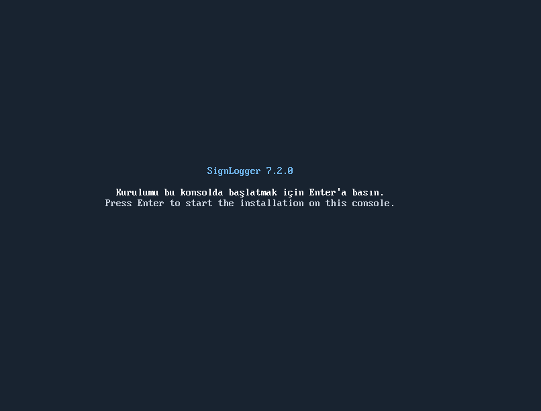
Figure 1 – Installation start screen
2. Select the installation language
Use the arrow keys to select Türkçe or English and press Enter to continue. The Turkish interface is used in this guide.
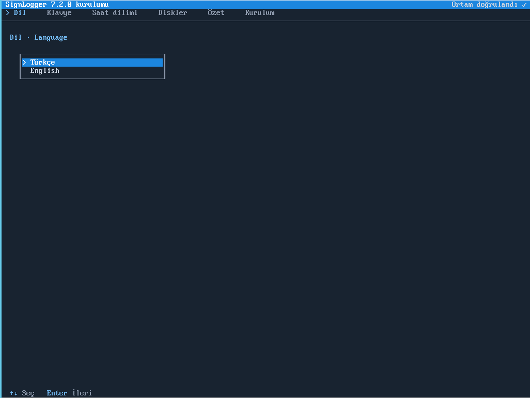
Figure 2 – Language selection
3. Select the keyboard layout
Select the layout that matches your keyboard; Turkish Q is selected in the example. Optionally type a few characters in the test field to verify the layout, then press Enter to continue.
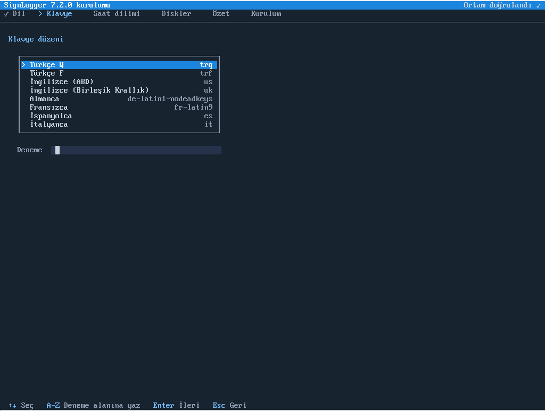
Figure 3 – Keyboard layout selection
4. Set the time zone
Select your region and city; for Türkiye, choose Europe and Istanbul. Check at the bottom of the screen that the time zone (e.g. Europe/Istanbul) and local time are correct, then press Enter. A correct time zone is important so that log records and timestamps carry the correct time.
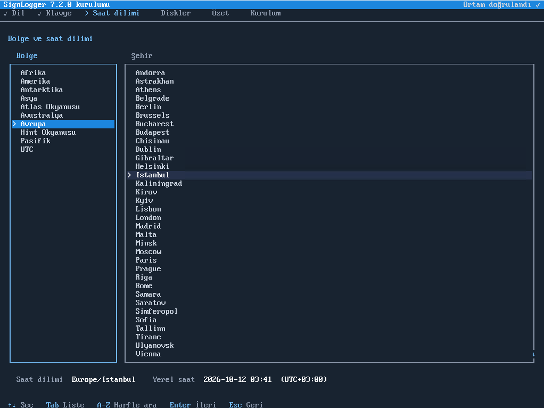
Figure 4 – Region and time zone selection
5. Select the system disk
Select the disk on which the operating system will be installed. The list shows each disk's name, model, size, serial number and current contents. Review the details and press Enter to continue. In the example, sda is selected as the system disk.
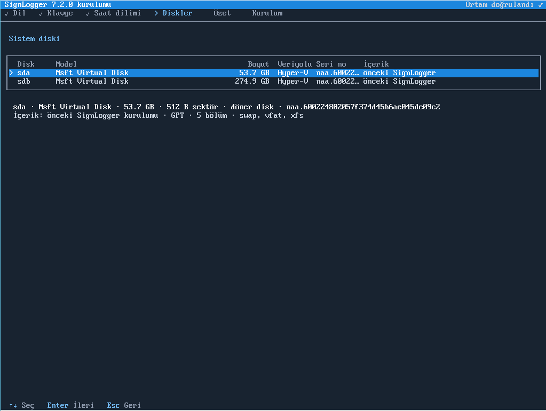
Figure 5 – System disk selection
6. Select the data disk
Select the disk to be used for log and data storage. The data area requires at least 250 GB; smaller disks are shown with a warning in the wizard. In the example, sdb is selected as a separate data disk.
If you do not have a separate data disk, you can use the same disk (sda), separate /data partition option. Review the resulting partition layout in the New layout area at the bottom of the screen and press Enter to continue.
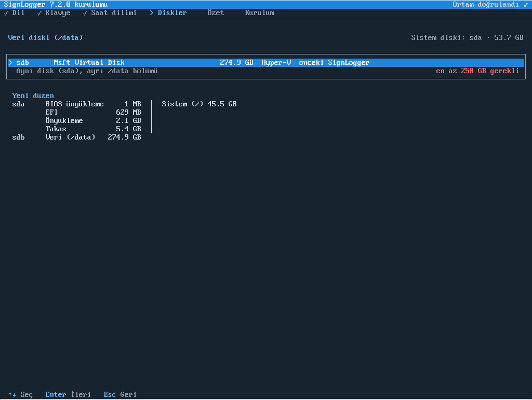
Figure 6 – Data disk and partition layout
7. Confirm the installation summary
On the summary screen, review the language, keyboard, time zone, system disk and data disk selections. Make sure the disks listed in the red box of disks to be erased (SİLİNECEK in the Turkish interface) are correct. To start the installation, type the confirmation word shown on screen (evet in the Turkish interface) and press Enter.
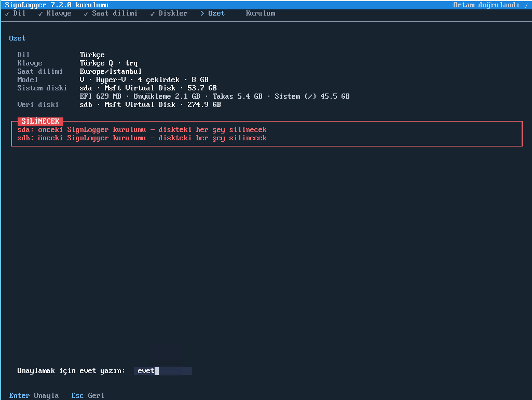
Figure 7 – Installation summary and erase confirmation
8. Wait for the installation to complete
Follow the progress bar while the system files are copied. Do not power off the machine or remove the installation media during this process.
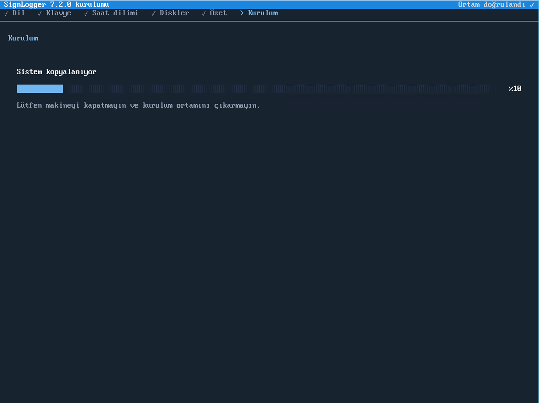
Figure 8 – Installation progress screen
9. Boot from the installed system and access the console
When the installation is complete, make sure the system boots from the installed disk; if necessary, detach the ISO or change the boot order. At boot, the SignLogger login screen appears on the console. It shows the version and the appliance's current IP address.

Figure 9 – Console login screen after installation
Configuring a static IP address from the console
After installation, assign a static IP address to the port1 interface so that the appliance is reachable at a permanent address on the network.
Console login
Log in to the console with the following default credentials:
- Username:
admin - Password:
admin
IP configuration commands
Run the following commands in order on the console. enable switches to write mode, next writes the entry to the candidate configuration and execute commit applies it. Replace the x.x.x.x and xx placeholders with values suitable for your network.
enable
config system interface
edit port1
set addr-mode static
set ip x.x.x.x
set prefix xx
set gateway x.x.x.x
next
end
execute commit
Command reference
| Command | Description |
|---|---|
enable | Switches to write (configuration) mode; the prompt changes from > to #. |
config system interface | Enters network interface configuration mode. |
edit port1 | Selects the network interface to configure. |
set addr-mode static | Sets the interface addressing mode to static. |
set ip x.x.x.x | Defines the static IPv4 address assigned to the appliance. |
set prefix xx | Defines the subnet mask prefix. For example, for 255.255.255.0 (/24) enter only 24. |
set gateway x.x.x.x | Defines the IP address of the default gateway. |
next | Writes the interface entry to the candidate configuration. |
end | Exits the interface configuration section. |
execute commit | Applies the candidate configuration. You can optionally append a comment (e.g. execute commit Management IP changed). |
Example configuration
To assign the address 192.168.1.10/24 and the gateway 192.168.1.1 to the appliance:
enable
config system interface
edit port1
set addr-mode static
set ip 192.168.1.10
set prefix 24
set gateway 192.168.1.1
next
end
execute commit
Note: The IP address is applied with
execute commit; if you are connected over SSH, the connection may drop. Performing this step from the console is recommended. For all CLI commands, see the SignLogger CLI User Guide.
Tip: The IP address and the gateway must be on the same subnet. After applying the configuration, verify from a computer on the same network that the IP address is reachable and that the SignLogger web interface opens.
If the installation fails: If you see an error code starting with K (e.g. K10, K20), see SignLogger ISO Installation Error Codes and Solutions for its meaning and resolution steps.
After installation
Once the appliance is reachable on the network, continue with these steps:
- Allow the required outbound network access on your firewall.
- Activate the licence and add your firewall devices.
- If the data area runs out of space later, follow the disk expansion guide.
Frequently Asked Questions
How large must the data disk be for a SignLogger ISO installation?
The installer requires at least 250 GB for the data area. The capacity you need grows with your log volume and retention period; if capacity runs short, the data disk can be expanded later.
Which processors does the SignLogger ISO support?
The SignLogger 7.2.0 ISO installs on processors that support x86-64-v3 (AVX2): Intel 4th-generation Core (Haswell), Xeon E5/E7 v3 and later, and AMD Excavator, Ryzen and EPYC processors. On older processors, or with virtual CPU types that do not pass these features through, the installation stops at the hardware eligibility check (K10).
Is a separate disk for system and data mandatory?
No. You can use a separate data disk, or create a separate data partition on a single disk with the wizard's "same disk, separate /data partition" option. In that case the disk's total capacity must be sufficient for both the system and the data area.
Does the installation erase data on the selected disks?
Yes. All data on the disks listed as "will be erased" on the summary screen is erased once you type the confirmation word. Back up any required data before installation.
The system boots from the ISO again after installation. What should I do?
Detach the ISO from the virtual machine's DVD drive or change the boot order so that the installed disk comes first, then restart the system.
How do I determine the prefix value?
The prefix is the short notation of the subnet mask: enter 24 for 255.255.255.0 and 16 for 255.255.0.0. Enter only the number, without a slash.
Can I use a ready-made virtual machine image instead of the ISO?
Yes. You can import the OVA image on VMware ESXi or the ready-made virtual machine files on Hyper-V. The steps are described in the VMware and Hyper-V import guides.