In this guide you will learn, step by step, how to activate your license and add firewall devices after installing SignLogger. Configuring SignLogger correctly is critical for meeting the log collection requirements of Law No. 5651. The guide covers FortiGate log collection, Zyxel firewall integration, and REST API, SSH and SNMP connection methods for other firewalls.
1. Signing In to SignLogger
Once the SignLogger virtual machine is imported and its network (IP) configuration is complete, the web management interface is available at:
https://signlogger_ipExample: https://192.168.1.100
Default Credentials
Username: admin@signlogger.local
Password: Admin12345!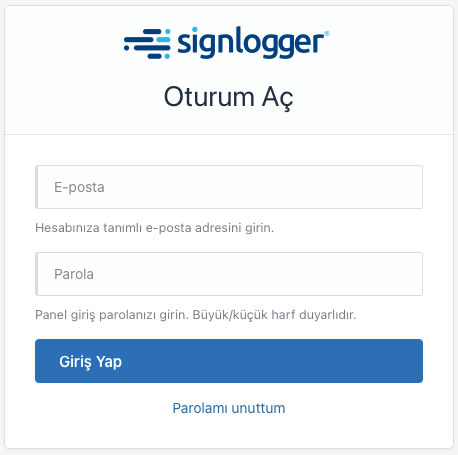
2. Adding a License
To activate a license, navigate to:
System Management → Maintenance & Operations → License Management
Click Add New License in the top-right corner of the page.

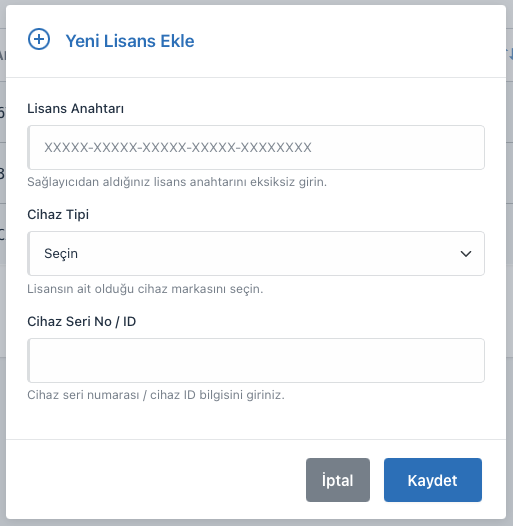
The license activation screen opens.
3. Entering License Details
Fill in all of the following fields on the license screen:
- License Key
- Device Type
- Device Serial Number
Enter the license key exactly as delivered to you, without any character differences.
For FortiGate Devices
If the license will be used on a specific VDOM (Virtual Domain), the VDOM name you enter must match the name defined on the FortiGate exactly — including upper/lower case. If VDOMs are not used, leave the field empty.
For Zyxel Devices
Zyxel firewalls are licensed by MAC address as the hardware identifier. Enter the device's MAC address in the Device Serial Number field.
4. Adding a Device
After the license is activated, add the firewall to SignLogger. Navigate to:
System Management → Maintenance & Operations → Device Management
Click Add New Device in the top-right corner.

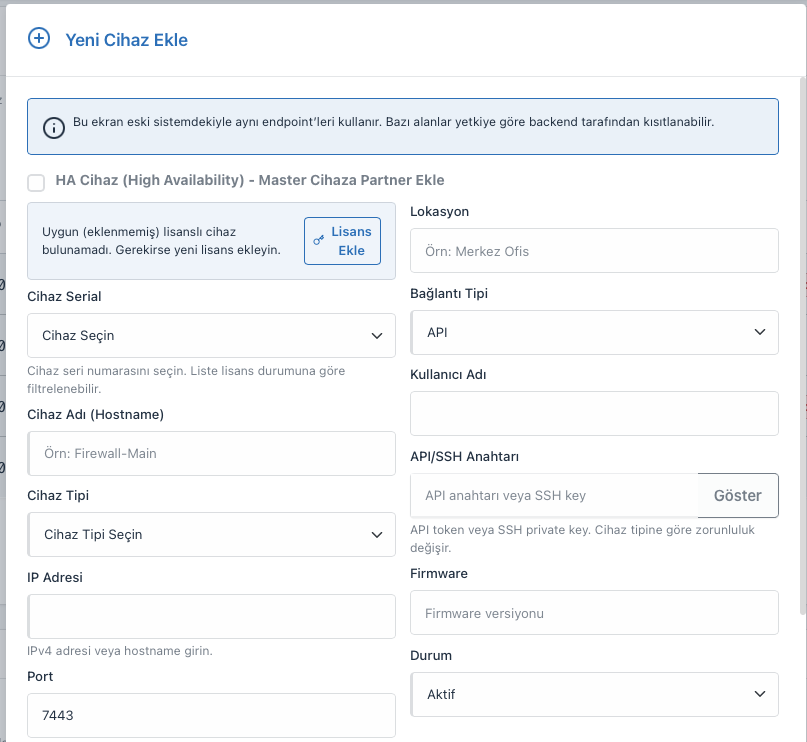
5. Entering Firewall Details
Define the following parameters on the new device screen:
- Device Serial Number
- Device Name (hostname)
- Device Type
- IP Address
- Port
- Username
- API or SSH Key
- Firmware
- Connection Type
The connection method varies by firewall brand and model.
6. FortiGate Connection (REST API)
SignLogger connects to FortiGate devices over the REST API. The following are sufficient:
- API access
- API key
- IP address
Thanks to the REST API model, most FortiGate scenarios do not require an additional username/password login.
7. Connecting Other Firewalls
For firewalls other than FortiGate, the connection is usually established with:
- Administrator username
- Administrator password
- SSH connection
On devices without REST API support, SSH is the preferred channel for log collection and management.
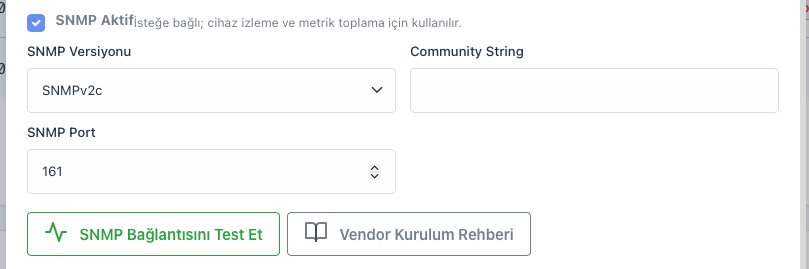
8. SNMP Configuration
For the SignLogger dashboard and device monitoring features to work at full capacity, some firewalls also require SNMP to be configured. With SNMP enabled, SignLogger can retrieve:
- Live device status
- Network traffic data
- CPU, memory and session-level performance metrics
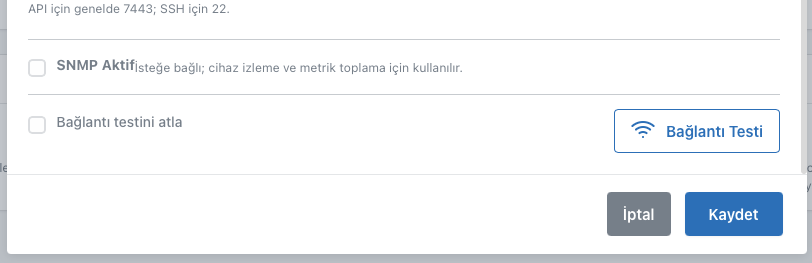
9. Connection Test and Saving
After entering all details:
- Click Test Connection to verify the device is reachable.
- When the test succeeds, click Save to store the configuration.
Once the connection succeeds, the firewall is registered in SignLogger.
10. Log Delivery and Monitoring
With the device registered, log delivery from your firewalls to SignLogger can begin. Incoming logs can be viewed and analyzed in detail through:
- The SignLogger dashboard
- Alarm screens
- Reporting modules
- Event log screens
Frequently Asked Questions
Where do I get a SignLogger license key?
After the purchase completes, the license key is sent to your registered e-mail address by your SignLogger sales representative or authorized distributor.
Is FortiGate VDOM configuration mandatory?
No. If you don't use VDOMs, leave the field empty. If you do, the name must match the FortiGate configuration exactly, including case.
Why do Zyxel devices use the MAC address instead of a serial number?
Zyxel firewalls reference the MAC address as the unique hardware identifier during licensing, so the MAC address must be entered in the Device Serial Number field.
Does SignLogger collect logs in compliance with Law 5651?
Yes. SignLogger centrally collects firewall logs with timestamps and digital signatures under Law 5651 and its regulations, stores them securely and makes them reportable as legal evidence.
What should I do if the connection test fails?
First verify the IP address, port, API key or SSH credentials. Then make sure the firewall permits access from the SignLogger IP (firewall policy and trusted hosts). If the problem persists, check for intermediate devices blocking the connection.
Related: VMware Installation Guide · Hyper-V Import Guide
I renewed the licence but the expiry did not change in the panel — why?
The most common cause is that the appliance cannot reach the licence server: outbound access to license.sysnet.com.tr on TCP 4888 (HTTPS) must be allowed in the firewall. The renewal is processed on the licence server, but the appliance cannot query it and so cannot see the updated information; once access is opened the status updates shortly. See Required Network Access for the full list, including the update, filter and KamuSM addresses.